
Manage and organize your Views
The Views view allows users to manage the existing view, including editing, duplicating, and deleting views.

Creating views
Views creation is done exclusively from inside a document, instead of the Views view.
Editing views
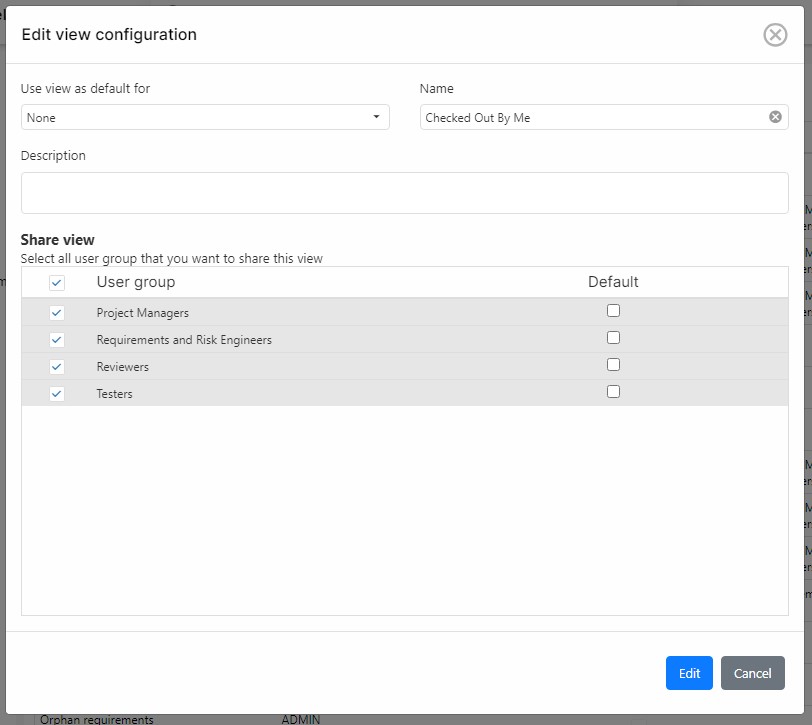
Users can edit a view by clicking on the edit icon (
- Use View as default for. This option allows users to determine when this view will be used.
- If the users select the value None, this means that the view will only be used when the user selects the view manually.
- If the user selects a document, this means that the view will be used every time the document is opened. NOTE: this will change the name of the view to the selected document.
- If the user selects a folder, this means that the view will be used every time any document inside that folder is opened, unless there is a view already associated to that document. NOTE: this will change the name of the view to the selected document.
- If the user selects All, this means that the view will be used every time a document is opened, provided that there is no view associated to that document, or any of the folders it´s contained.

- Name: The name is a free text field unless a document or folder is selected in the previous option. This applies when None or All is selected.
- Description: This is free text description of the view
- Share view: Views can be shared with other user groups in read-only mode. Users will be able to use and duplicate the view but will not be able to edit or delete it. If a shared view is updated, it´ll be immediately updated for all the users. If the Default option is selected, this view will be established as the default for all documents for the target users. If another view is already defined as the default, it´ll be overwritten with this one.
Duplicating views
Users can duplicate their own or shared views by clicking on the duplicate button (
Deleting views
Users can delete their own views (not the shared views) by clicking on the delete button (