
How to Import Microsoft Word documents using the Visure Plug-in
Exclusively Available through Microsoft Word
The Import from Word plug-in allows you to seamlessly import requirements and related information directly from Microsoft Word into Visure. This tool simplifies transferring structured data and documentation from Word documents into your Visure projects. Learn how to import your requirements with this video or follow the steps below:
Step-by-Step Guide:
1. Prerequisites:
Ensure you have the Visure Plug-in installed on your Microsoft Word application. (The plug-in is not available within Visure Authoring itself and only functions within Microsoft Word.)
2. Preparing Your Word Document:
- Open your Word document.
- Clearly structure your document using headings, tables, or bullet points to represent requirements and other data.
3. Using the Import Plug-in:
- In Microsoft Word, navigate to the Visure Solutions tab.
- Click on
.
- A panel will appear allowing you to map your Word document structure to Visure elements and attributes.
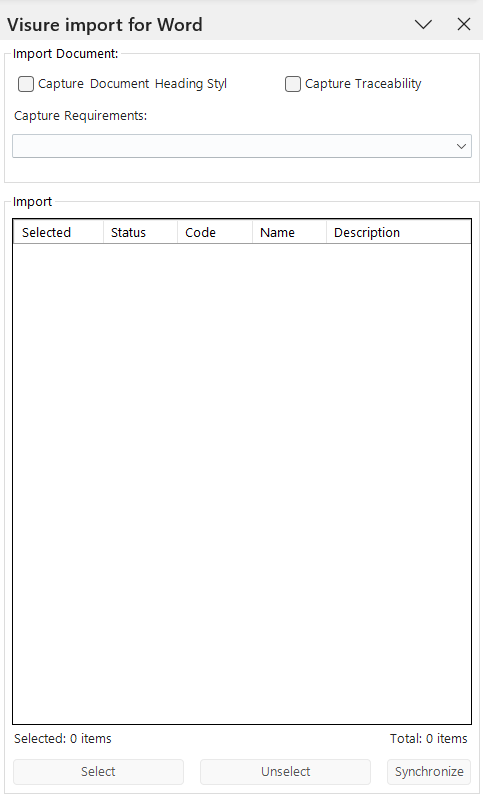
4. Mapping Elements and Attributes:
- Define which sections or styles in your Word document correspond to items in Visure.
- Configure mappings to match headings or specific styles to Visure attributes, ensuring accurate data import.

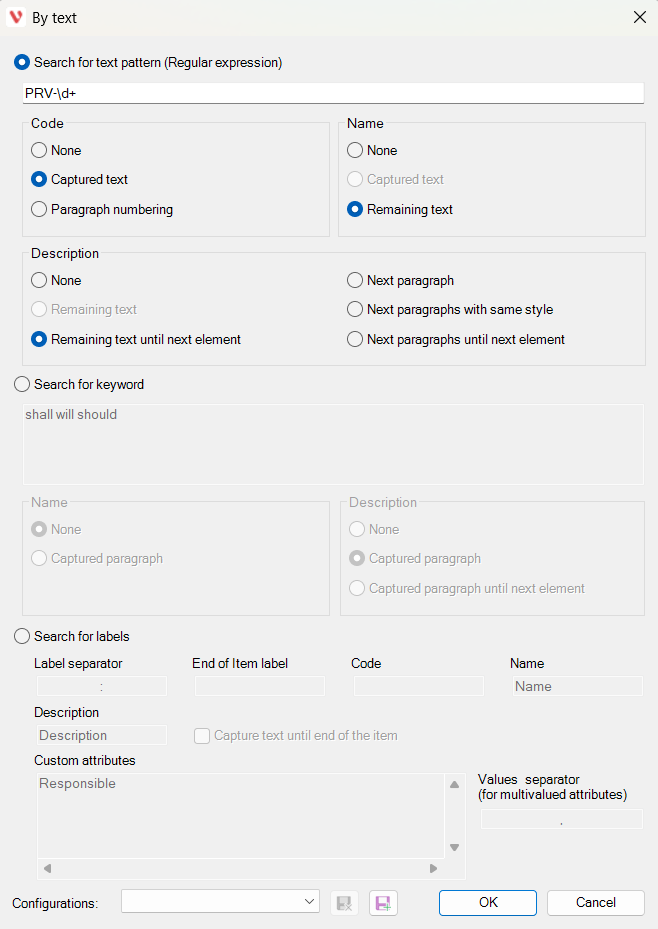
5. Importing Data:
- Once mapping is complete, click "Import".
- The data from your Word document will be automatically transferred into your selected Visure project.
6. Verifying Imported Data:
- Open Visure Authoring.
- Verify your imported data under the designated document or folder, confirming that all elements and attributes match your mapping.
Benefits of Using the Plug-in:
- Efficient and error-free importation of structured requirements.
- Significant time savings by automating the transfer process.
- Ensures consistency and accuracy in requirements management.
- With the Visure Import from Word plug-in, integrating external documents into your requirements management process becomes quick, intuitive, and accurate.