
Kanban View
The Kanban view is a board-like view that allows users to display items categorized based on a fundamental aspect of the project such as the status or the assignment to users. This view is common for project management. To select the Kanban view, select it from the view type dropdown menu:
In the grid, the items belonging to the selected document are displayed in a Kanban Board.
For each item, a card with the code and name is displayed with a green line if the element is checkedout.
The columns in the Kanban Board match the values of an enumerated attribute that can be selected in the: Select Attribute drop-down menu. The number of items in the column (that take the value of an attribute assigned to the column) appear beside the value of the attribute, in the column name.
On the left, the Navigation panel is available. In the context menu, available options can be found for the selected item (check-in/out, delete, etc.)
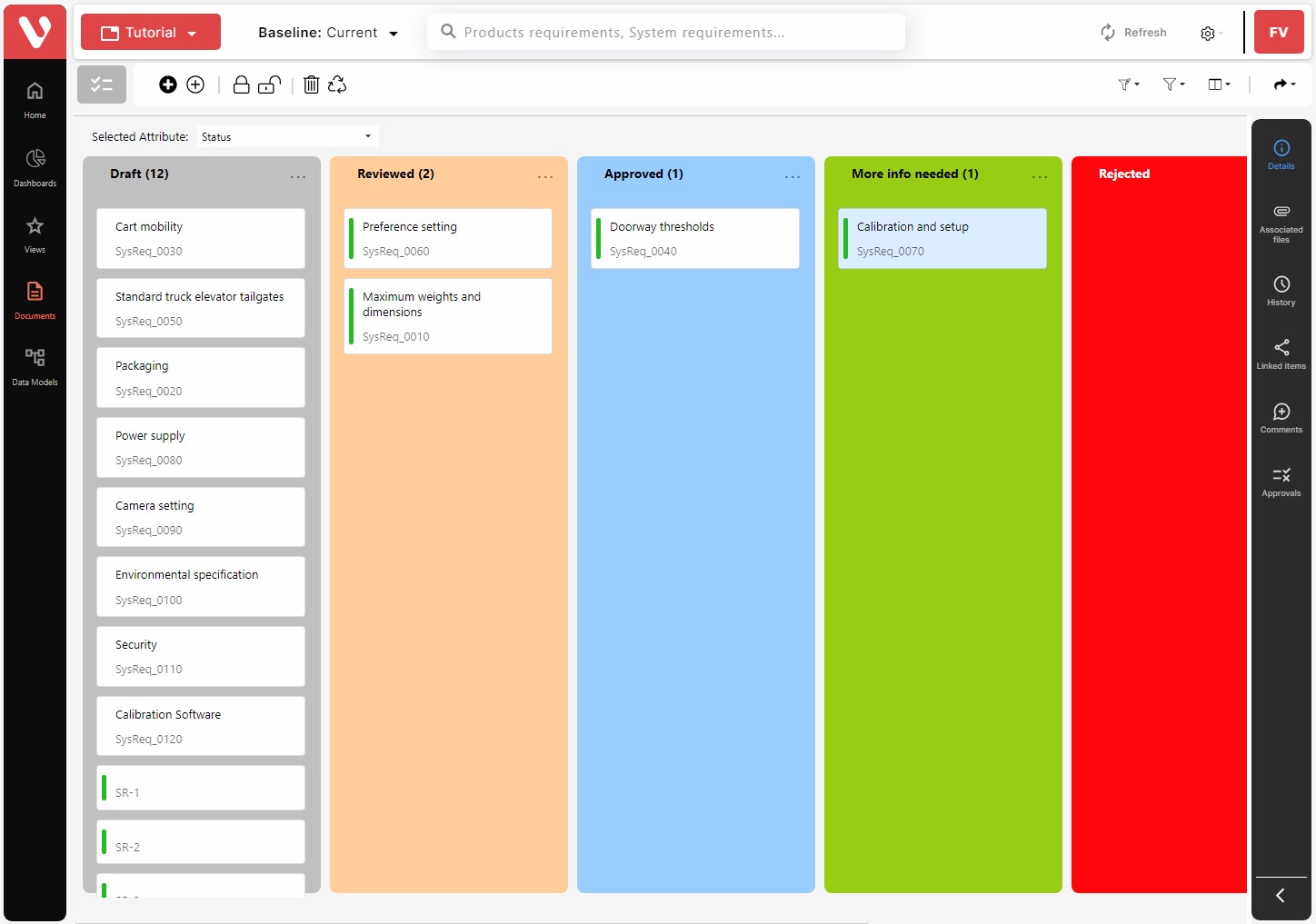
To change the position of a column in the Kanban view click on the name of the attribute in the column and drag the column and drop it in the new position.
To move an item to another column in the Kanban view, select the item, drag the item, and drop it in the second column.
NOTE: Moving the item to a new column implies changing the value of the attribute for the item. If it is not checked-out previously, it will be automatically checked-out when the drag and drop takes place. If it is not possible to assign the new value of the attribute (for instance, because it is not allowed in an associated workflow), an error message will be displayed, and the item will not be modified.