Document view
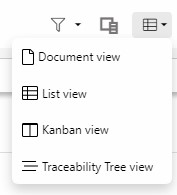
The Document view is a document-like view that allows users to easily read requirements in a very convenient format. It is usually the default view, but some documents may be configured to have other default views. To select the Document view, select it from the view type drop-down menu:
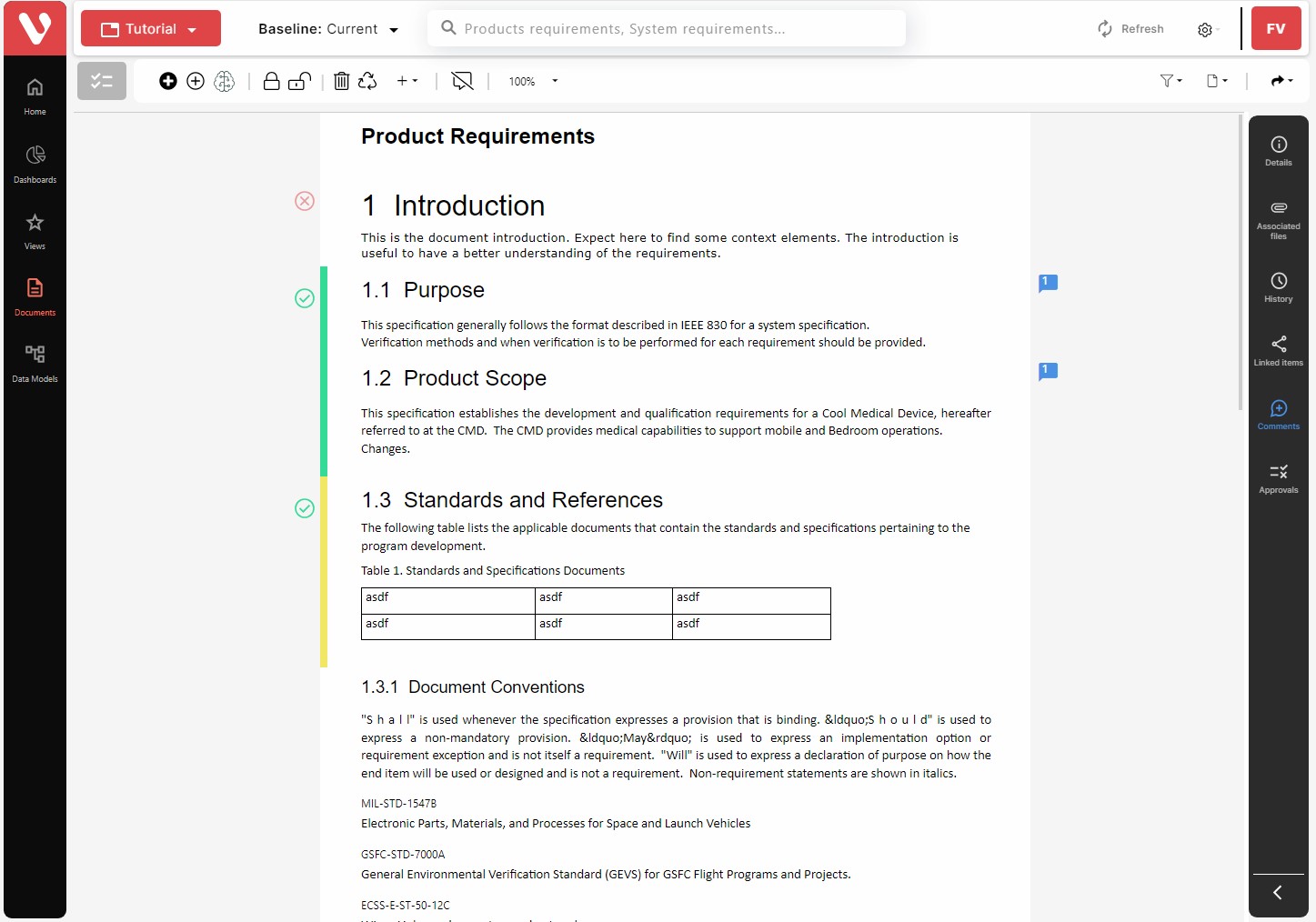
This view has the following characteristics:
- It is a hierarchical sorting with the selected specification at the first level, and the hierarchy of items assigned to each of the specifications in the lower levels.
- For each item, the following information is displayed: check-in/check-out status, sorting number/code, name, and description.
- Sorting number: This is a number automatically assigned by the tool that reflects the hierarchy of the headings inside them. The format is: 1, 1.1, 1.1.1, etc.
- Description is shown below the line with the sorting number/code and item name.
NOTE: The headings are identified as the items for which the isRequirement attribute takes the value “Heading”. Sorting numbers in the Document view are only assigned to Headings. For elements of Item type (the ones for which the isRequirement attribute takes the value “Item”) the code is displayed together with the name of the item.
NOTE: The check-in / check-out status is displayed with a color code in a line to the left of the element:
- Green: Checked-out by the user.
- Yellow: Checked-out by another user.
- No colored line: Checked in.
Items display a comment indicator (
Items also display approved or rejected indicators at the side of the item.