
Create Project Templates
A project template is a saved configuration captured from an existing project. It can be as lean as just the structure — data model, documents, attribute definitions — or as full as a complete duplicate including users, baselines, and content. Templates let you set up a project's structure once and reuse it for every similar project that follows.
Most organizations run programs of similar projects — same data model, same document hierarchy, same regulatory scope. Templates exist so that structural work doesn't have to be redone every time.
To create a template
Templates are created from an existing project — the one whose structure you want to reuse.
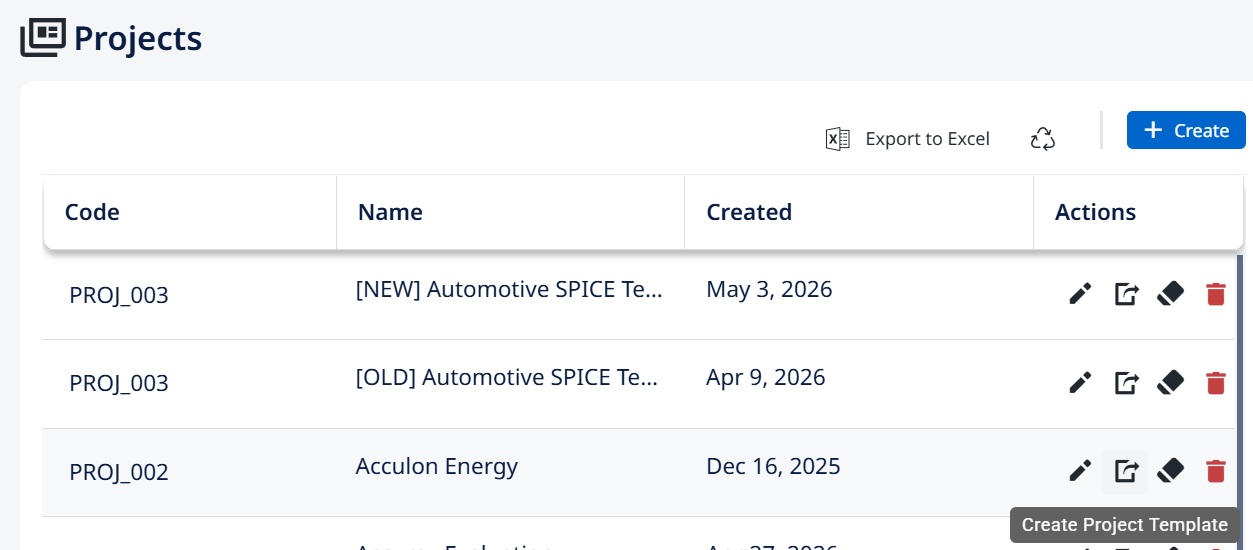
- Click the Create Project Template button on the source project.
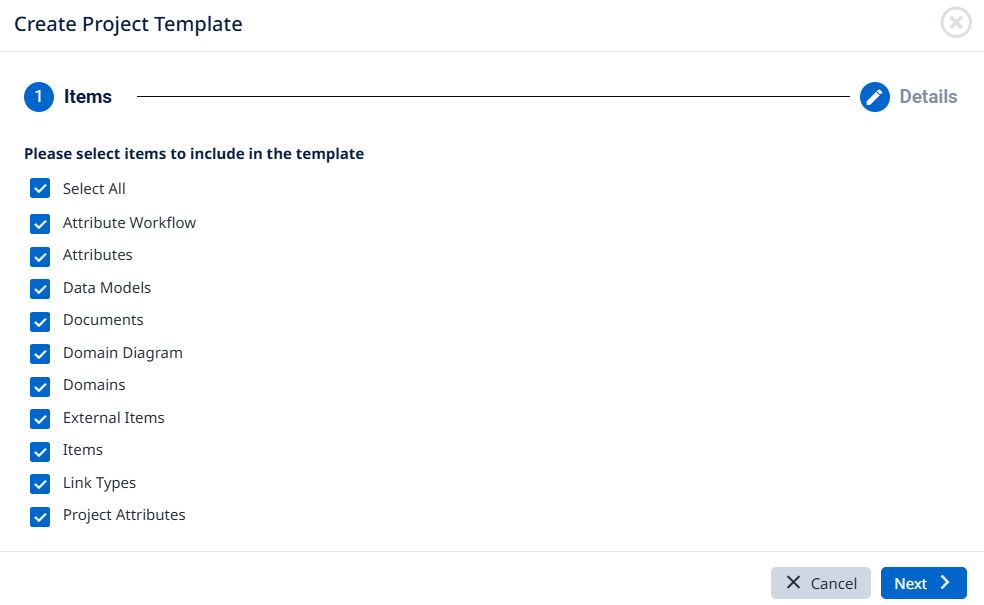
- Select the element types to include. All elements of each selected type will be included in the template. Some types are always included regardless of your selection — baselines, access partitions, user groups, and similar configuration travel with every template automatically. Diagrams have a wrinkle: if you include a diagram, you must also include the elements it references (data models, documents). Otherwise the template will contain the diagrams but they'll be empty. Click
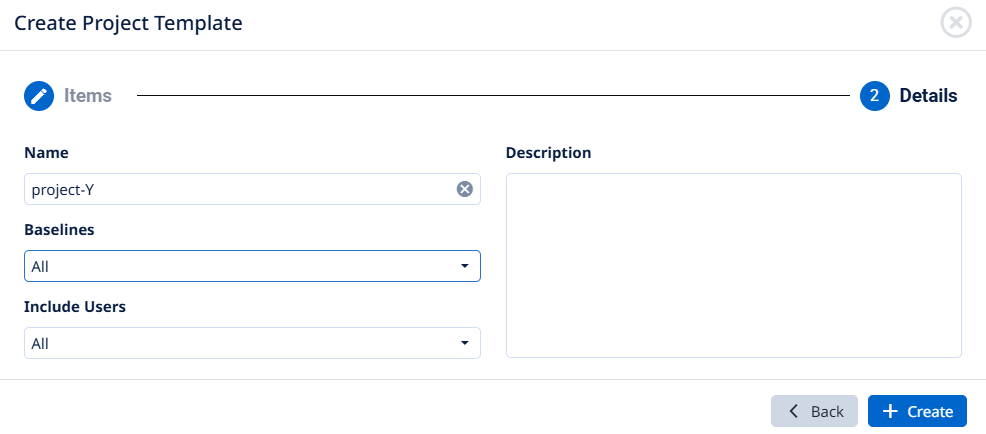
Nextwhen you've made your selection. - Configure the template's metadata and contents.
- Name — defaults to the source project's name; you can customize it.
- Description — free text describing what's in the template. This is what a future user reads to decide whether this is the right template for the project they're about to create — write it for them.
- Baselines — three options:
- All — include all baselines, effectively duplicating the project across its full history.
- A specific baseline — include only the state captured by that baseline. Useful when you want a new project identical to this one at a previous point in time (for example, the v1.0 release baseline).
- Current baseline — include the current state of items only, without history.
- Include users — three options:
- All — every user in the repository is included. Use when preserving authorship is important.
- None — no users are included. All elements appear as owned by the
ADMINuser in the new project. - Only active — every user that hasn't been deleted and is still active. The right choice in most cases — preserves history without dragging ex-employees into new projects.
- Click
Create.
Generation runs in the background. Visure notifies you when it's done. The finished template lands in the same folder as your other templates, where you can download it or use it to start a new project.