
Linked Items Tab
This tab displays the existing links with other items for the item selected in the grid.
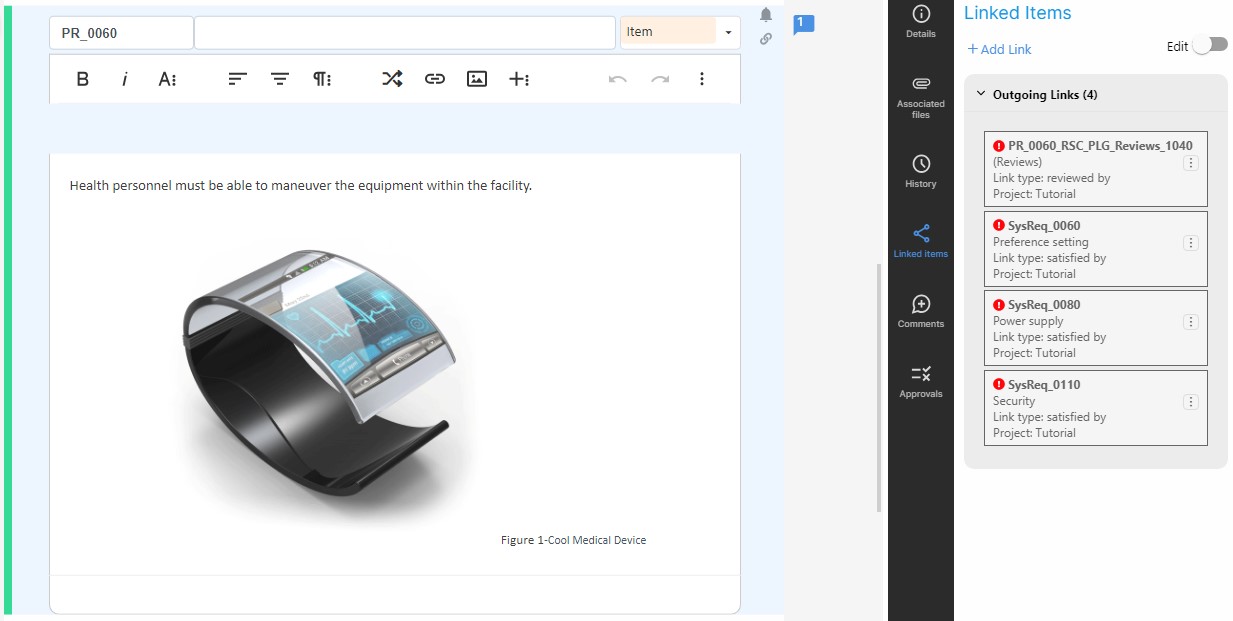
Links between item link types are displayed in two groups:
- Incoming links: Shows the list of items related to the selected item for which this item is the target of the link.
- Outgoing links: Shows the list of items related to the selected item for which this item is the origin of the link.
For each link, the following information is displayed:
- Code and name of the linked item.
- Link type.
- If the link is suspect, the
icon appears beside the code of the linked item.
Clicking on the arrow to the left of each group, the information can be displayed or hidden.
To navigate to a linked item, click on the code of the linked item. If the linked item belongs to more than one specification, select the specification that should be opened to display the item.
To make a link suspect, click on the more options icon (
To remove the suspicion on a link, click on the more options icon (
To eliminate the link, click on the more options icon (
It is also possible to create links directly from this tab. Please refer to section 2.11.11.9 for more information.