
Creating data models
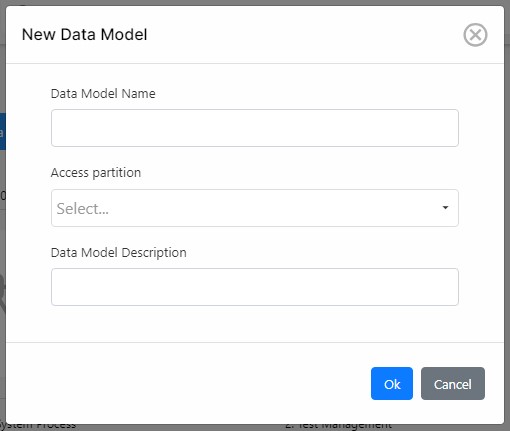
Project managers will be able to create new data models by clicking on the 
- Name
- Access partition
- Description
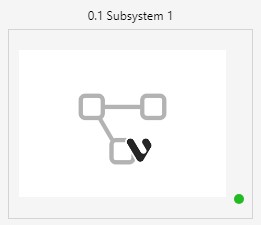
Once created, the data model will appear in the list without a thumbnail. All checked out data models will display a green icon at the bottom right corner of the icon:
Editing data models
Users may also check out data models through the right-click option and select Check Out. Once checked out, users will be able to rename the data model, as well as delete it and edit the contents.
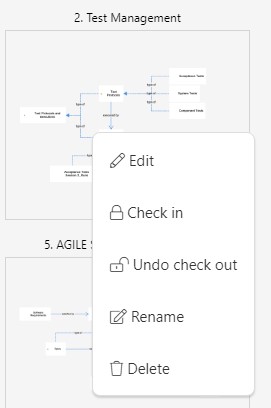
When the user clicks on Edit, the data model will enter an Edit mode:
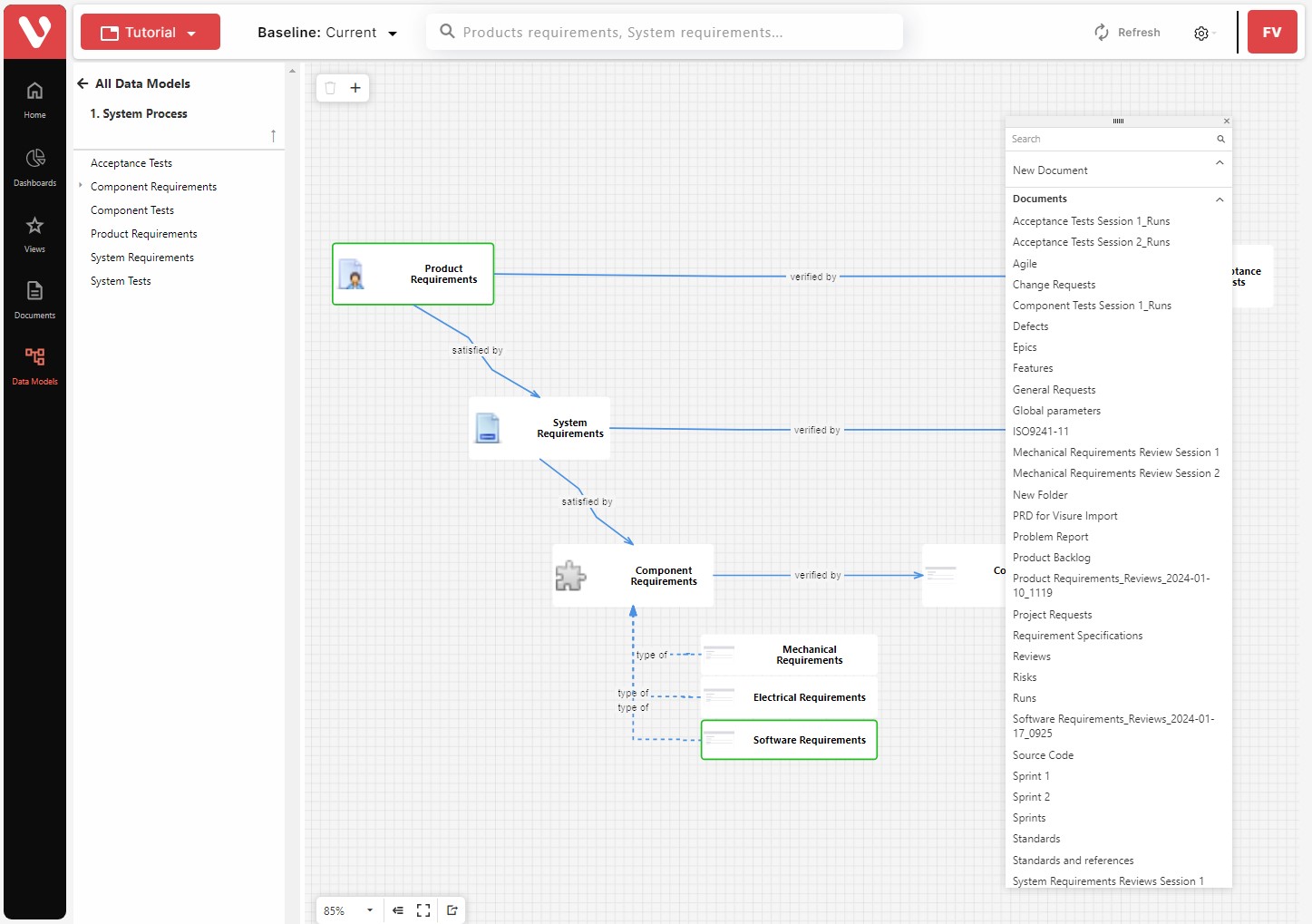
- Check in or out documents by right-clicking on the document, or by selecting the document
And clicking on the option in the toolbar 
- Create new documents by drag and dropping the New Document option in the list into the diagram.
- Include existing documents into the data model by drag and dropping the corresponding document into the diagram.
- Create links between the documents by selecting one document and dragging one of the corners to the other document.
Exclude or delete documents by selecting them and clicking on the delete icon ( 


💡 TIP Clicking on a document in the Browser or in the diagram, the document will open.