
Traceability Matrix
The Traceability Matrix is where you see traceability across documents at a glance. Where the Linked Items tab, shows the links for one item at a time, the Matrix shows the connections between whole documents — every link between them, all in one view.
Use the Matrix when you need to:
- See coverage between documents — every requirement has a test, every test traces back to something.
- Spot gaps — items missing their expected traces. These are what auditors and reviewers look for.
- Produce a traceability artifact for an audit, design review, or stage gate.
Opening the Matrix
Click the Traceability Matrix icon in the Elements Panel.
Configuring the view
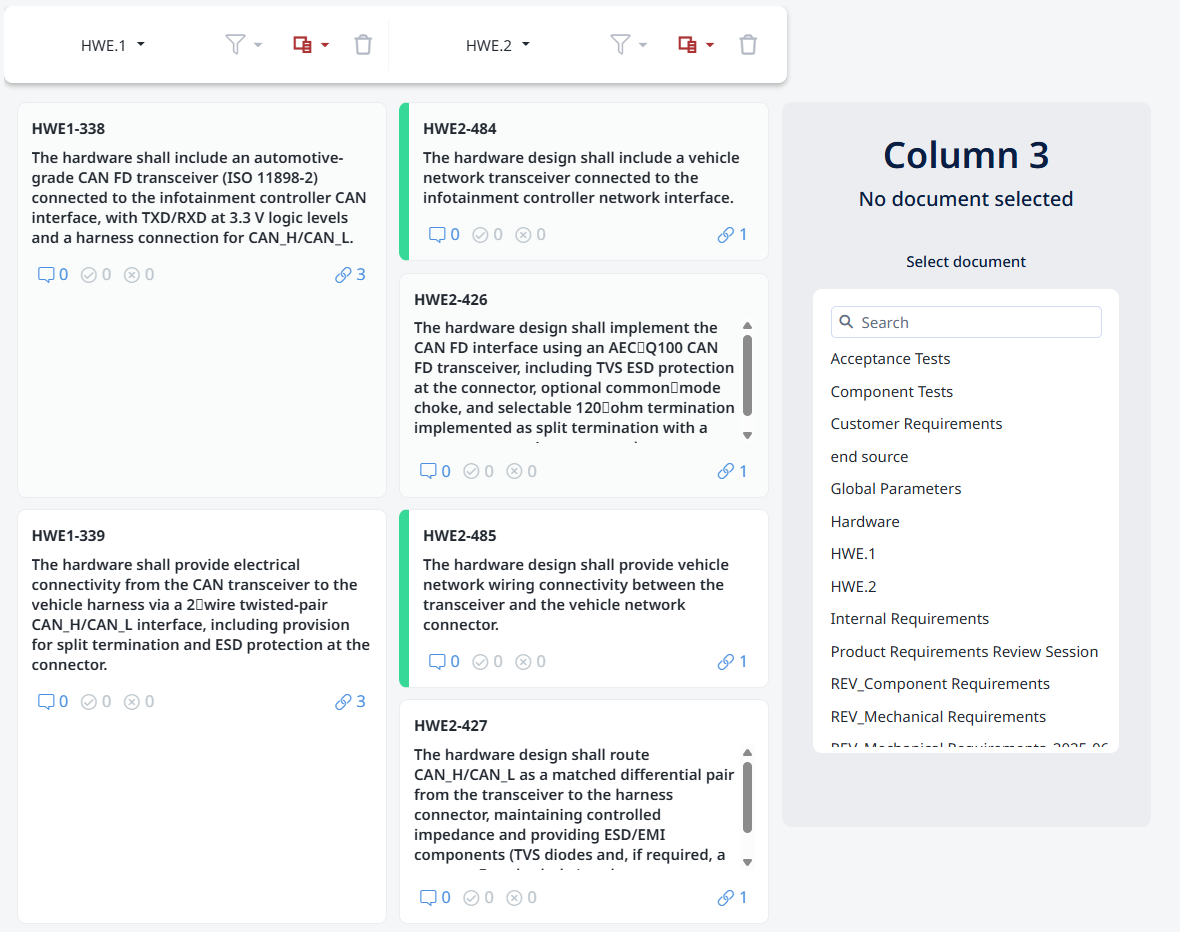
Configuration is simple — you don't filter by link type or item type. You just select the documents you want to compare.
- click on New traceability configuration
- Pick the document for the column.
- Pick the document(s) for the right column(s). You can add several documents side by side to see traceability across a broader scope.
- The matrix renders, showing every link between the selected documents.
All link types are shown by default. Each link displays its source item, target item, and the link type connecting them.
Adding attributes
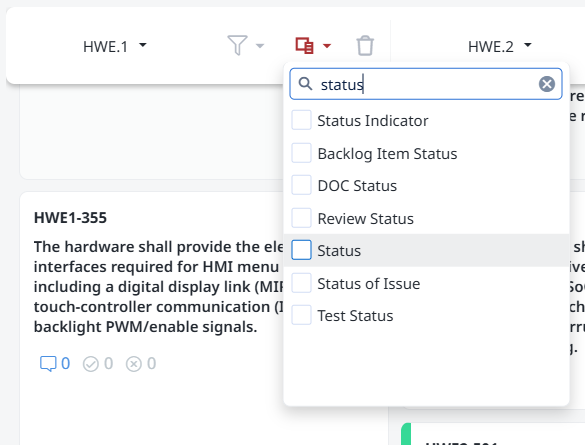
You can enrich the matrix by adding attributes to the display — item attributes or link attributes that appear alongside each connection. This is useful for:
- Showing item-level attributes (e.g.,
Priority,Status,Owner) next to each item so you can scan and filter visually. - Showing link-level attributes (e.g.,
Justification, link comment) on the connections themselves. - Producing audit-ready reports where attribute context is needed in the same view as the traceability.
Attributes are added from the matrix toolbar; pick the ones you want to display.
Saving and exporting
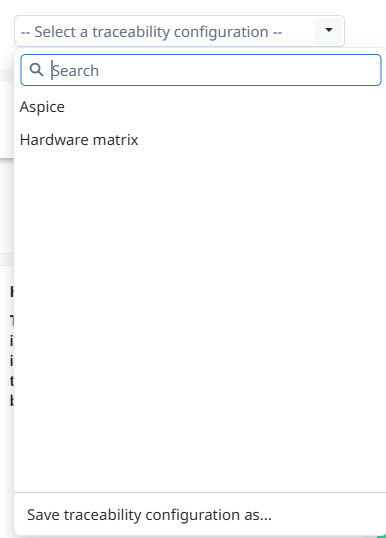
A useful matrix configuration can be saved as a View and reused — useful for recurring traceability reports.
The matrix can be exported for audit submissions, offline analysis, or sharing — typically as Excel.
Matrix vs Linked Items tab
Both surfaces show traceability, but they answer different questions:
You want to... | Use |
|---|---|
See what one specific item links to | Linked Items tab (Properties Panel) |
Add or remove a single link | Linked Items tab |
See coverage across whole documents | Traceability Matrix |
Find requirements without tests (gaps) | Traceability Matrix |
Generate an audit artifact | Traceability Matrix |
Investigate one item's full context | Linked Items tab, then navigate |