AI - Integration with ChatGPT
Visure 8 provides a new integration capability with ChatGPT, which can be enabled or disabled. This option is disabled by default.
The integration does NOT share any information from the database except for the information that the user types in the prompt explicitly.
Generating items
When clicking on the AI Assisted generation, Visure will display a window which will prompt the user what to do:
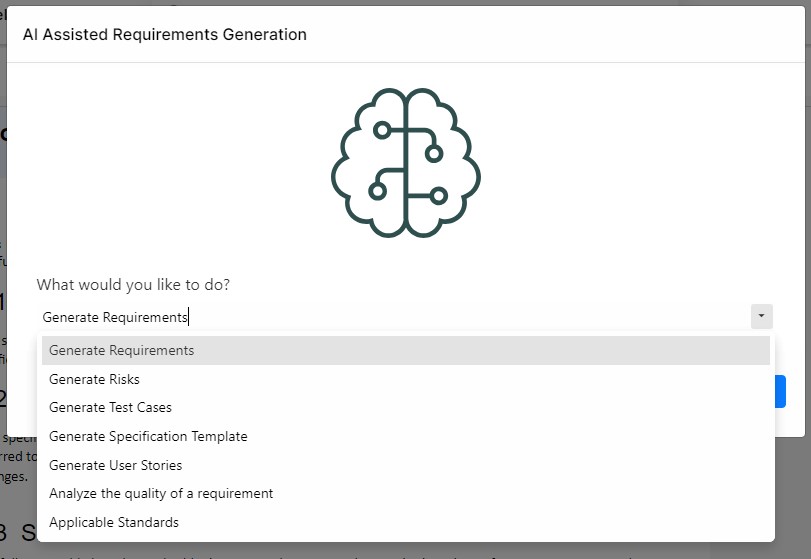
For each one of these options, the user is required to enter the concept or idea to generate the items for. For instance, the user can select to generate requirements for “the embedded software in a defibrillator”, or “security requirements for a ground control communication platform” “software to track patient information for a hospital in the US”. After clicking on Next, the application will generate requirements and will display the result to the user:
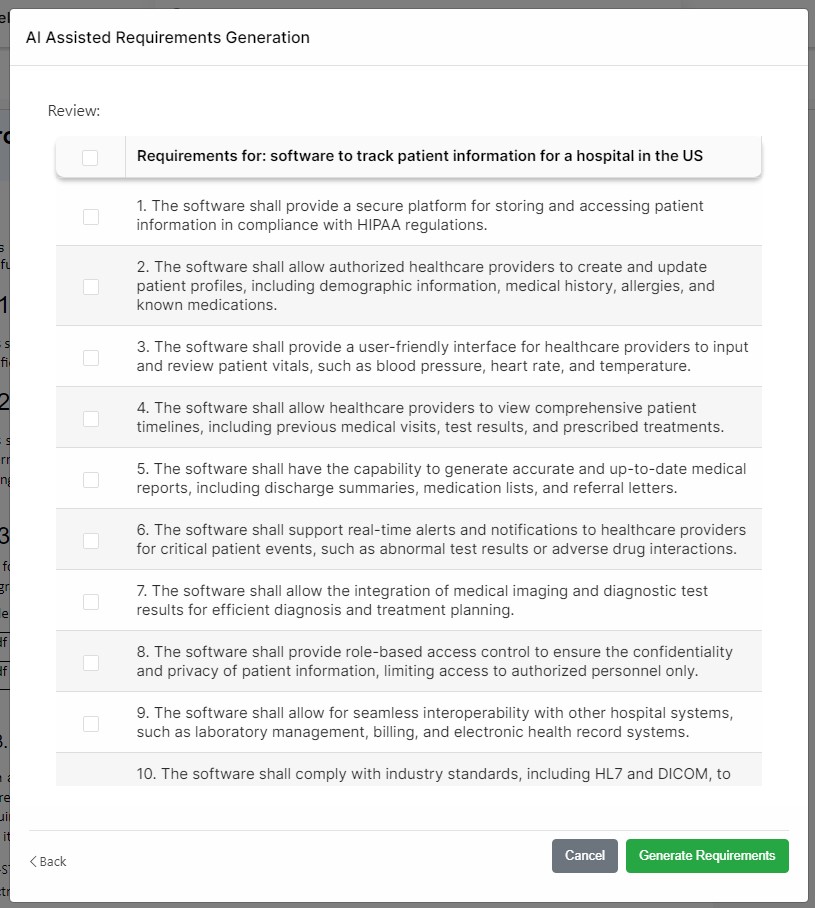
The user will now be able to select which requirements to include in the document.
Enabling the AI module
During the installation of Visure Authoring, there is a step in which the user can enter a ChatGPT API Token that will enable the integration. The integration can also be enabled afterwards by editing the Appsettings.json file found in the application installation folder, typically C:\inetpub\Visure Authoring 8.
Edit this file and find a line with the tag "ChatGPTApiKey" and enter the API Token in this tag. Once the integration is enabled, the UI will display a new icon in the toolbar: