Baselines
A baseline is a locked snapshot of your project — documents, items, attributes, and their links — at a moment in time. Once captured, you can return to it to see exactly how the project looked, compare it against another baseline to see what changed, and have it electronically signed for approval. Baselines are what make a project auditable.
The Baselines menu
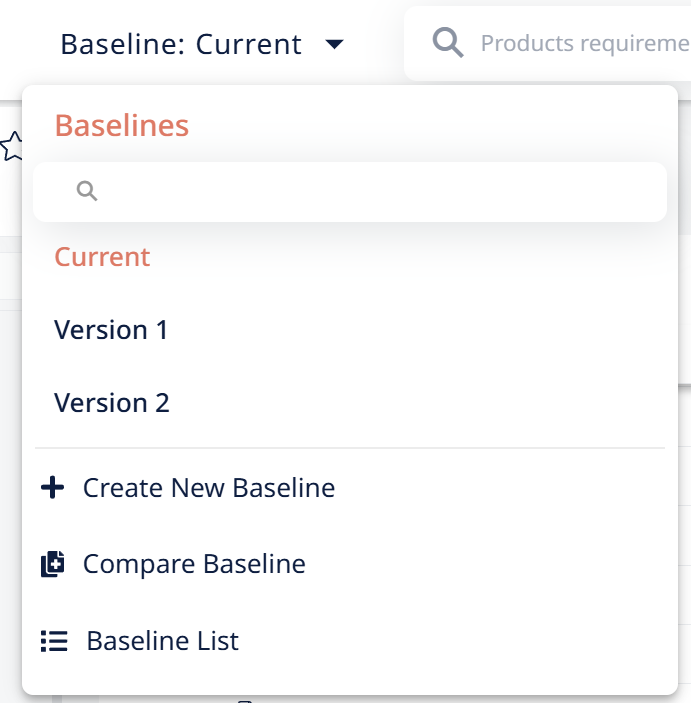
At the top of the screen, click the Baseline: Current panel. "Current" shows the baseline you're presently viewing in the project. The dropdown opens with a search box, the list of existing baselines (e.g. Version 1, Version 2), and three actions:
- + Create New Baseline
- Compare Baseline
- Baseline List — the baseline management section (see below)
Activate (select) a baseline
The panel always shows the active baseline next to "Baseline:". To view an earlier state, open the dropdown, find the baseline by name, and select it. Visure reverts every element to the versions in that baseline so you see the project exactly as it was when it was created. Inside a document, only the baselines that apply to that document appear in the list.

Create a baseline
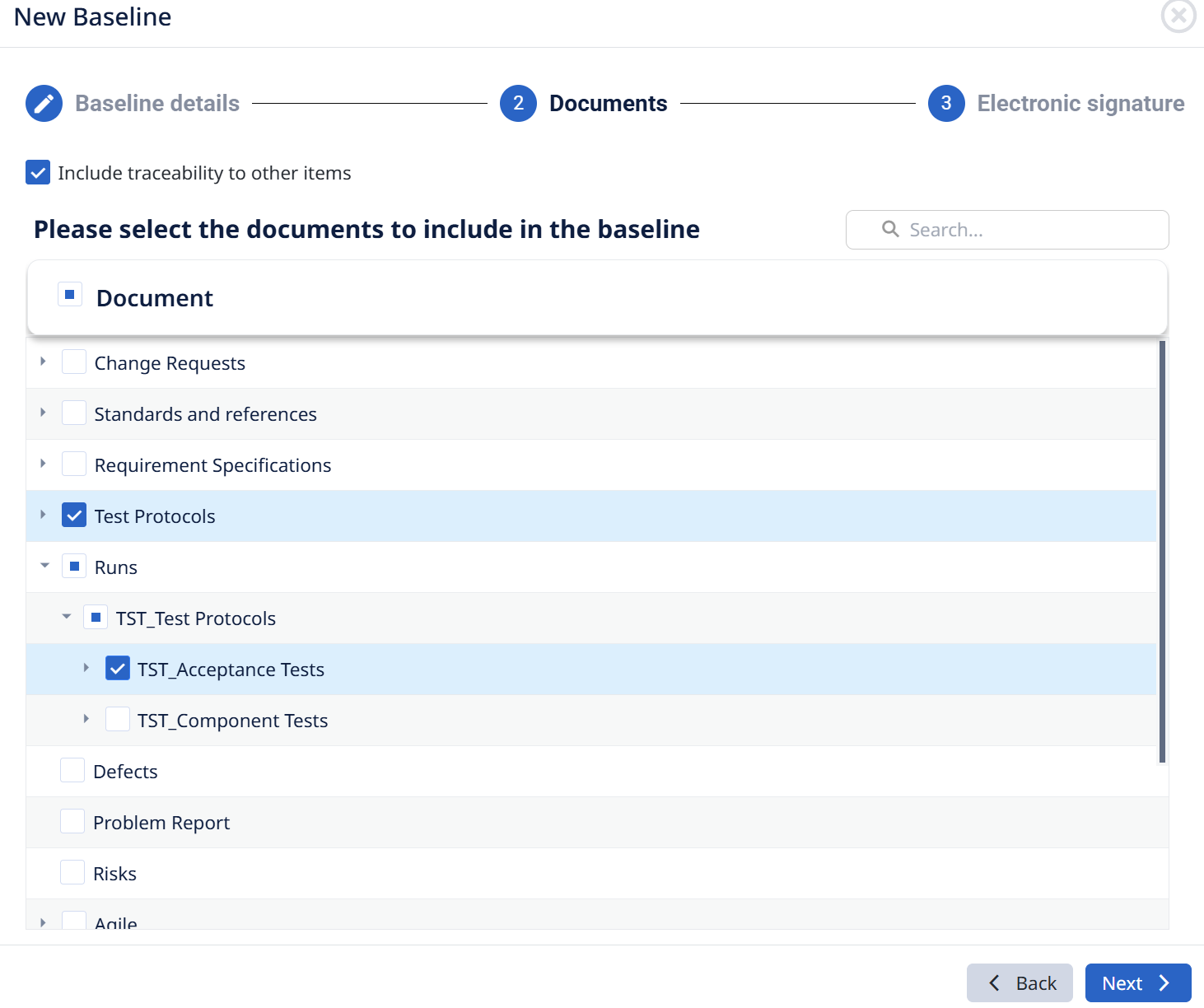
Click + Create New Baseline. A three-step wizard opens.
1. Baseline details — enter a name and description, and set the Partial baseline toggle:
- Partial baseline (on) — you then select which documents to include.
- Complete baseline (off) — snapshots the whole project. Administrators only, since it may need to force-check-in elements left checked out by others.
2. Electronic signature — choose who will be assigned to sign the baseline.
3. Purge — decide what to do with old item versions. This only matters for complete baselines and is purely housekeeping — it trims stored versions so the database runs smoother; it doesn't change what's in the baseline:
- Don't purge items — keep every version.
- Purge all item versions — remove versions not captured in a baseline.
- Purge versions prior to the most recent baseline — keep recent history, drop the older unused versions.
Click + Create to finish. (For a partial baseline, there's nothing to purge — you're done after assigning signers.)
Sign a baseline
If you've been assigned to sign a baseline, an asterisk (*) appears after its name. Select it, open a document, and a Sign button appears at the top.

- Open (activate) the baseline you've been assigned to sign
- Click Sign.
- Set the signature Type: Approved, Conditional approval, Declined, Reviewed, or Commented.
- Add optional comments and confirm your password. If you log in using Single Sign-On (SSO), you will be prompted to sign in again.
- Click Save.
Once signed, the signature's status and comment can't be changed.
Compare two baselines
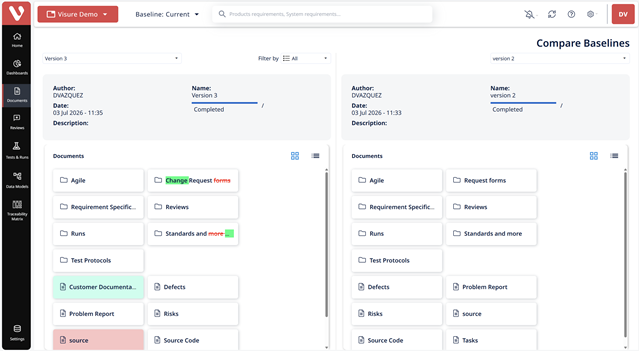
Click Compare Baseline to see what changed between any two baselines (complete or partial). The Compare Baselines screen opens with two panels — select one baseline in each (e.g. the current one on the left, an earlier version on the right). Each panel shows the baseline's author, date, name, and completion status.
Visure first shows document-level changes — added, deleted, or renamed folders and documents. New content is highlighted green, deleted content is struck through in red, and renamed content shows the added text green and removed text struck red. Documents with internal changes carry a colored indicator so you can spot them at a glance. (This level shows structure changes; the detailed changes live inside each document.)
Double-click a document to compare its contents. Items are listed like the List View, each with a Status:
- No change — identical on both sides.
- Added — highlighted green.
- Deleted — struck through in red.
- Modified — changed text and attribute values shown inline (added green, removed struck red), with change indicators next to the attributes that differ.
- Moved — shown in its new position, marking its old location.
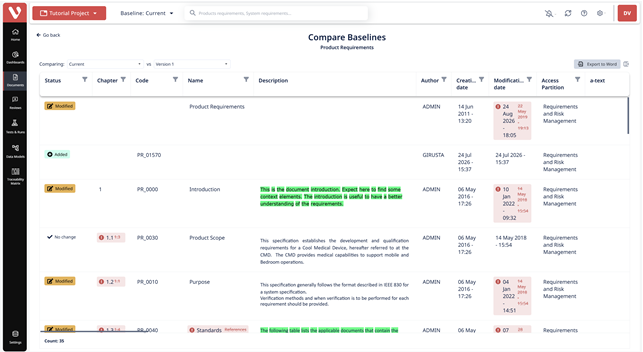
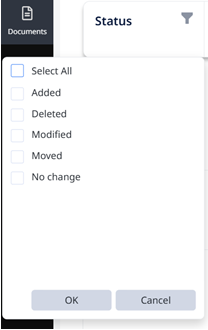
Columns (Status, Chapter, Code, Name, Description, Author, dates, Access Partition, user attributes) can be added or removed just like the List View, and the Filter by menu lets you show only Added, Deleted, Modified, or Moved items (or All).
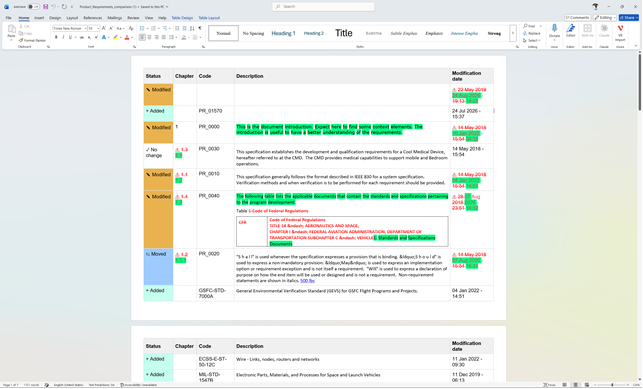
Click Export to Word to generate a status report of the differences as a table — what's new, modified, and removed between the two baselines, with the details of each change.
Baseline List (management)
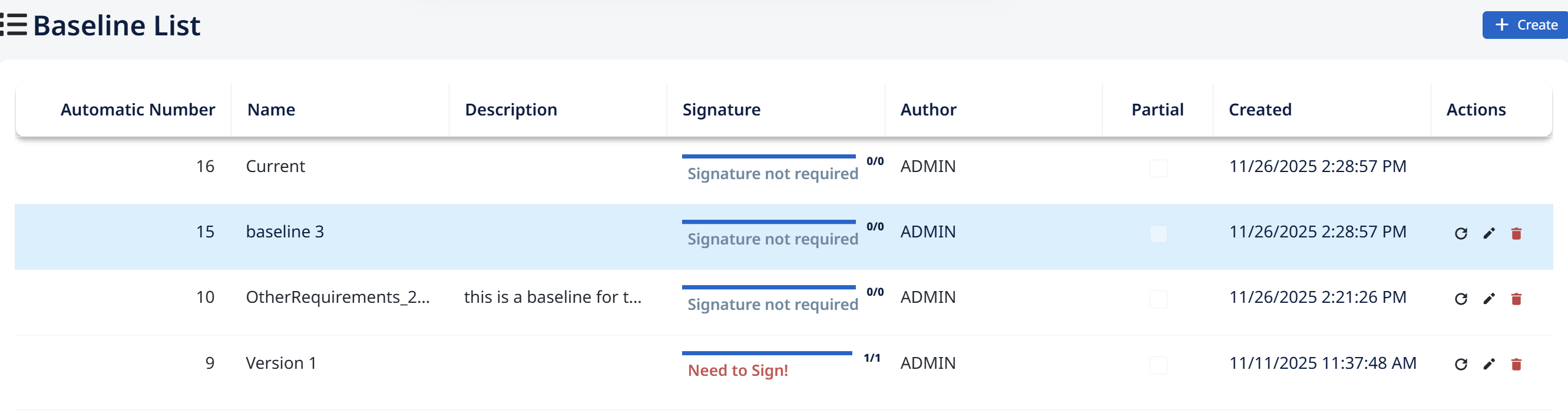
Baseline List is where you manage baselines. It shows every baseline with its ID, name, description, signature status, author, partial/complete type, and creation date. Hover a signature field to see who signed and with what meaning; if you've been assigned to sign, click Need to Sign! to jump straight to it.
Project administrators can also:
- Restore (complete baselines only) — creates a new baseline of the current content first (to avoid data loss), then restores the selected one.
- Edit — change a baseline's name and description.
- Delete — permanently remove a baseline; can't be undone.