
Exporting to MS Word
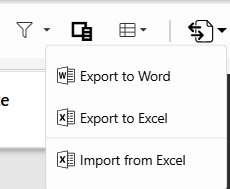
The user can export both the Document and List view to Word clicking on the export button and then selecting Export to Word.
The following options are available in the prompted dialog:
- Use a previously saved export configuration.
- Create a new export configuration.
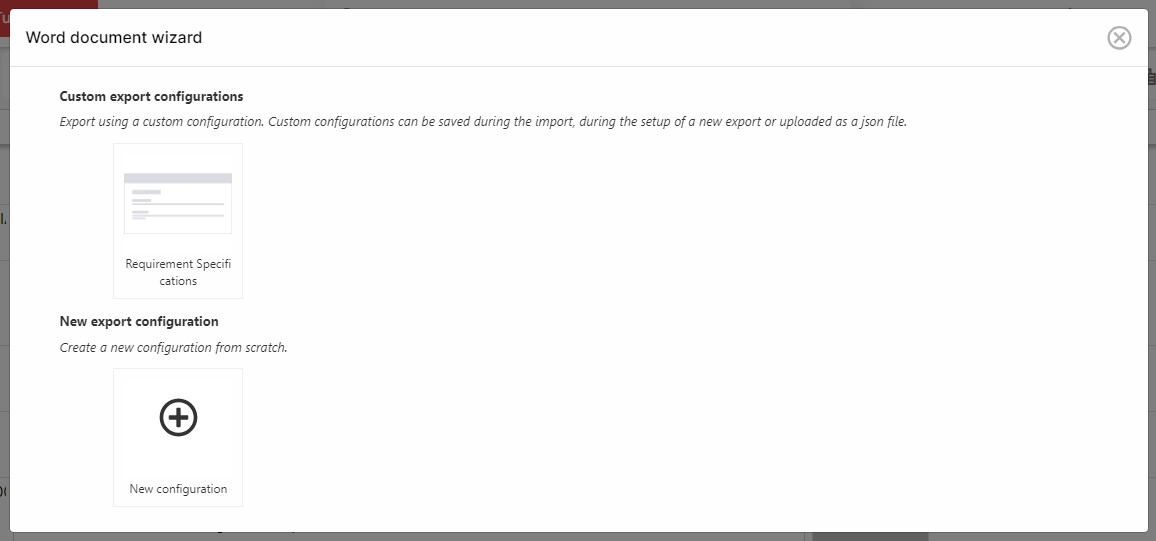
- Click on New Configuration.
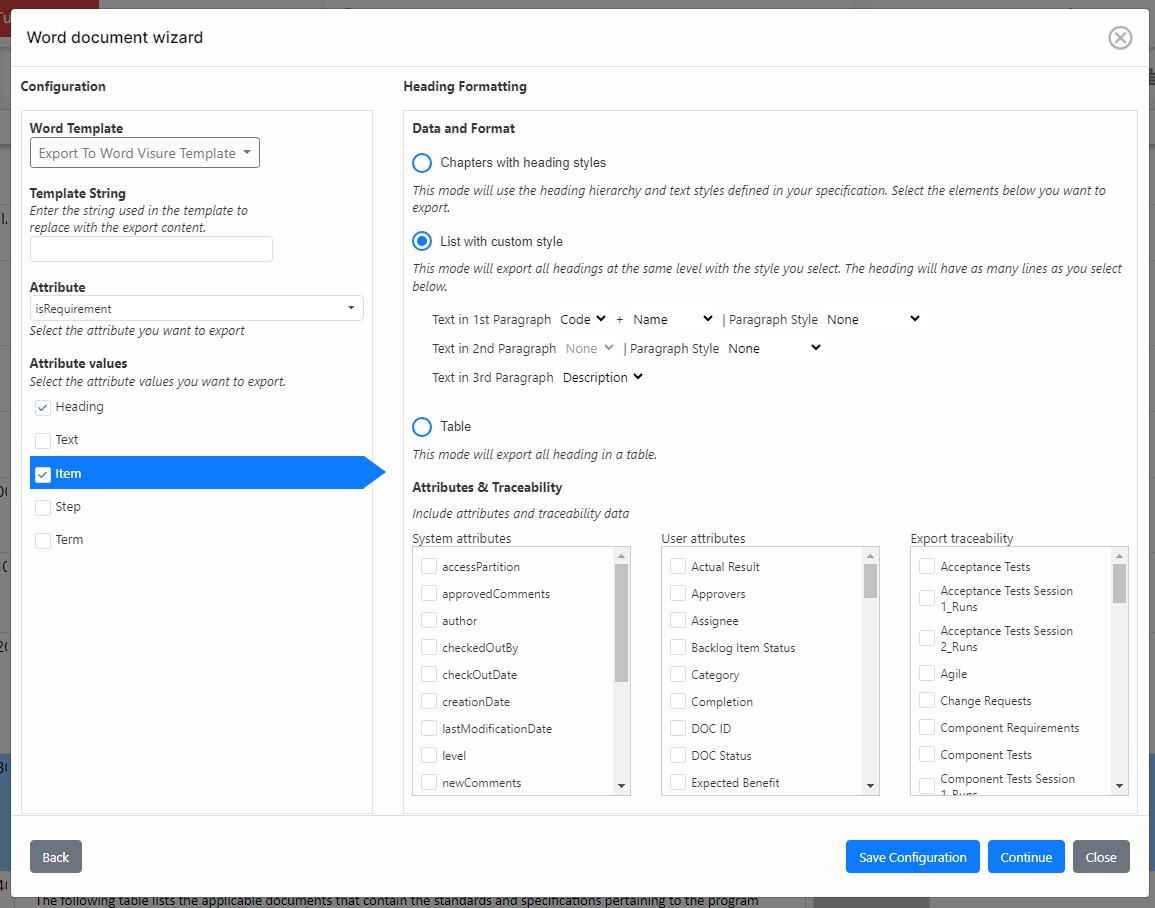
- Select a MS Word template (optional).
- In the case of selecting a template, input a string (tag) that should exist in the template and that will be replaced with the contents of the export.
- Select the attribute to identify the element types for which the export will be configured. For instance, an attribute such as isRequirement can be used, with values such as Heading, Item or Text, for which different characteristics for the export can be defined.
- Check the element types that will be exported (based on the values of the attribute previously selected).
- Select each value and configure the format for the export of each element type.
- Click on Continue.
- Map Visure attributes to the MS Word template Properties (these Properties will be replaced with the corresponding attribute value and displayed wherever these properties appear in the document).
- Click on Save Configuration.
- Input the Configuration name.
- Click on Save Configuration (if no Properties are mapped, the configuration can be saved in the previous dialog).
- Click on Export.
The MS Word document is created and downloaded.