
Associated Files Tab
This tab allows you to attach files and associate external URLs to the items
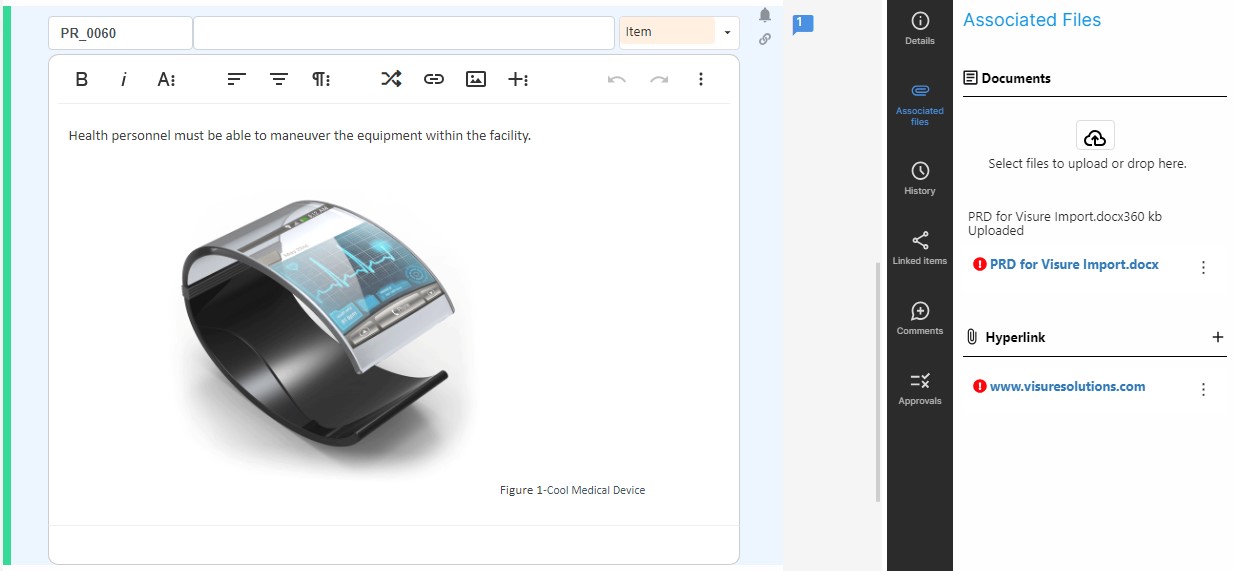
To associate a file, check out the items and click on the upload icon, or simply drag a file on top of it:
The file will be uploaded to the Visure database.
For each file, the following information is displayed:
- File name
- Suspicion status: If the link between the item and external file is suspect, the suspect icon (
) will appear in front of the file name.
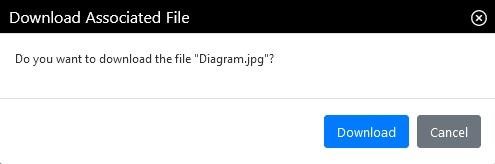
To download the associated file, click on the name and the application will display a pop-up message with a confirmation:
To remove the suspicion on an associated file, click on the more options icon (
To delete the association between an item and an associated file, click on the more options icon (
The file will be deleted from Visure database.
It is also possible to associate a URL to an item. To associate a URL to an item, click on the plus icon in the hyperlink section:

A pop-up window will appear where you will be able to enter the URL:
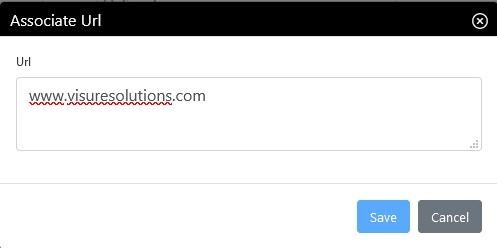
By clicking on the URL, it will open in a web browser.