
Comments
Adding comments to items
Comments on items can be added or replied to by any user (even with read only permissions on the item). It is also possible to add comments on items when viewing a previous baseline (different from the Current baseline).
Comments may be added either inline in the document view, or in the Comments tab in the properties panel in any of the views.
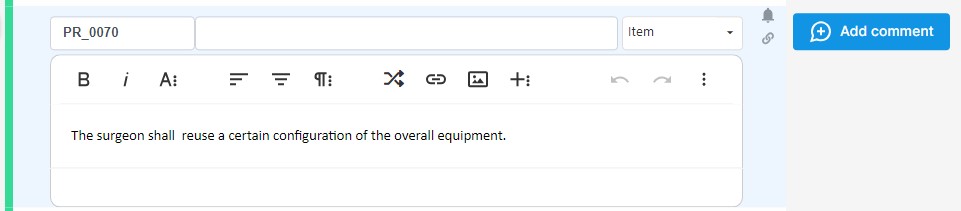
To add a comment in the Document view, select the item and click on the Add comment button.
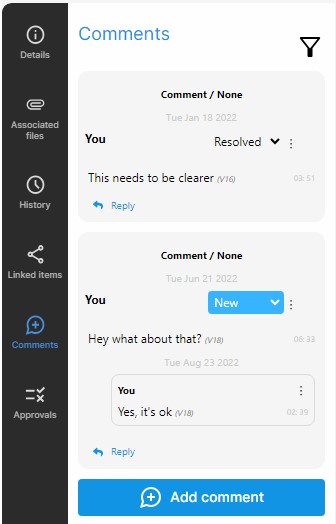
To add a comment in any of the views, go to the Comments tab in the properties panel and click on Add Comment.
Either inline or through the Comments tab, when clicking on the Add comments button a dialog box will appear:
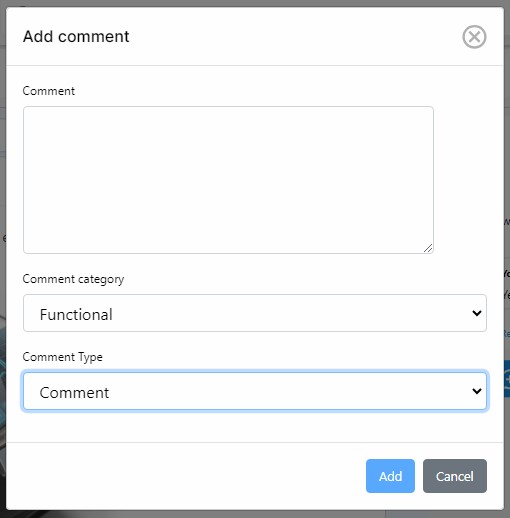
Fill in the following fields:
- Comment: Enter the description of the comment here
- Category: The category is a customizable list that can be defined in the Administration Center. The default values are: o None
o Functional o Non functional
- Type: The type is a customizable list that can be defined in the Administration Center. The default values are: o Comment o Question o Suggestion o Defect
NOTE: If an item has unresolved comments the 
Replying to comments
To reply to a comment, users may do so inline from the Document View or from the Comments tab in the Properties panel. In either case, go to the comment you want to reply to and click on reply at the bottom of the comment:
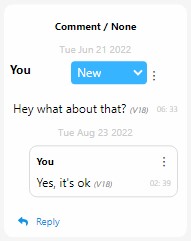
Enter the comment reply in the dialog box and click on Add.
The reply will appear as a new comment indented below the first one. Each comment and its replies form a thread.
Editing comments
To edit a comment, click on the more options icon (
NOTE: The displayed Date and time of the comment reflects the comment’s time and date of creation*.
NOTE: Once a comment is input, only project administrators or the author of the comment can edit and update the comment.
Deleting comments
To edit a comment, click on the more options icon (
If the first comment of a thread is deleted, the whole thread will be deleted. If the deleted comment is not the first one of a thread, only the comment itself is deleted.
NOTE: Once a comment is input, only project administrators or the author of the comment can delete it.
Resolving comments
Comments display a basic approval workflow with the following states:
- New (Unresolved)
- Approved (Unresolved)
- Rejected (Resolved)
- On Hold (Unresolved)
- Resolved (Resolved)
Comments in unresolved states will be displayed in the document and will be counted for the comment’s indicator, while resolved comments will not.
To transition a comment, click on the status and select the desired transition.
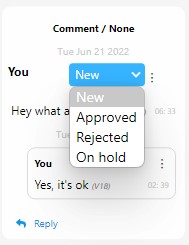
The allowed transitions are the following:
From New to Approved
From New to Rejected
From New to On hold
From Approved to Resolved (Resolve)
From Rejected to New (Re-open)
From On hold to New (Re-open)
From Resolved to New (Re-open)
NOTE: The users who can resolve a thread are:
- The user who created the thread (the user who added the first comment).
- Project administrators.
- Users who belong to a user group are authorized to resolve comments.