
Users
The Users section is where administrators manage everyone who can access the repository. It has two tabs: Details (the user list and management) and Visure User Passwords (password management for native Visure accounts).
The Details tab
Lists every user with their Username, Super Admin flag, First Name, Last Name, Telephone, and Email, plus per-row Actions. Above the list you can Export to Excel, restore deleted users (recycle icon), and + Create a new user.
Creating a user
Click + Create to open the New User wizard (two steps).
Step 1 — User Type. Choose how the user authenticates:
- Visure User — a native account managed entirely inside Visure, with its own username and password.
- Microsoft Entra ID — authenticates via Azure/Entra ID (SSO).
- OpenID Connect Users — authenticates via an OpenID Connect provider.
- Windows (Active Directory) — authenticates via your Windows/AD domain.
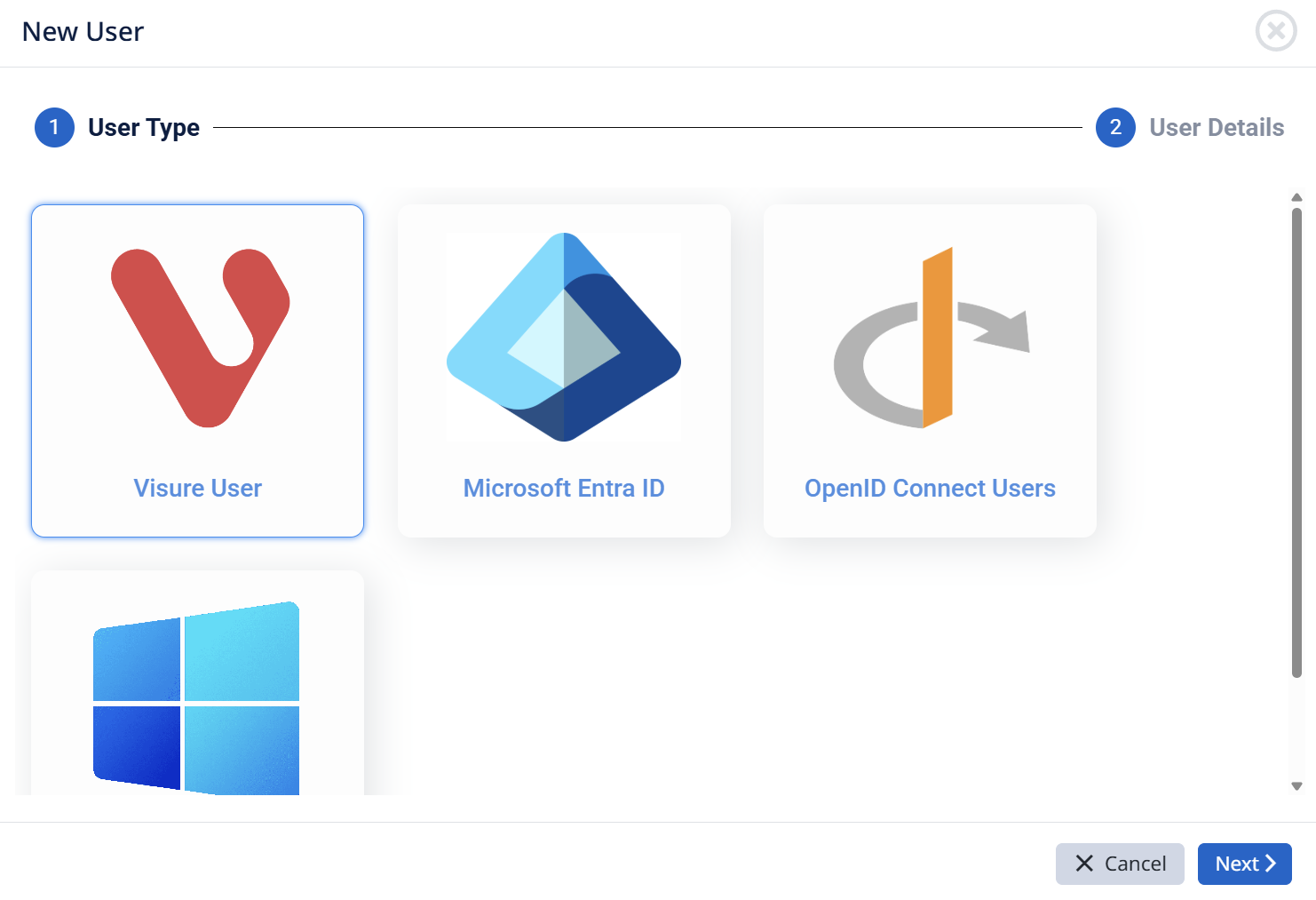
Step 2 — User Details. Enter the account details for the selected type (name, username/email, and — for Visure users — password setup).
Visure Users specifically
A Visure User is the native account type: Visure stores the credentials and handles login directly, so it doesn't depend on any external identity provider. This is the right choice when a user isn't in your SSO/AD directory, or for standalone and demo setups.
For Visure users, password handling lives on the Visure User Passwords tab — where an administrator can set or reset passwords. (New Visure users can also be emailed a password-setup link automatically if that option is enabled in the repository's Email Configuration.) External types — Entra ID, OpenID Connect, Windows — don't have passwords here; those are managed by the corresponding identity provider.