Connect the MCP to Claude
Claude.ai supports MCP connectors natively. (Complete the MCP prerequisites first.)
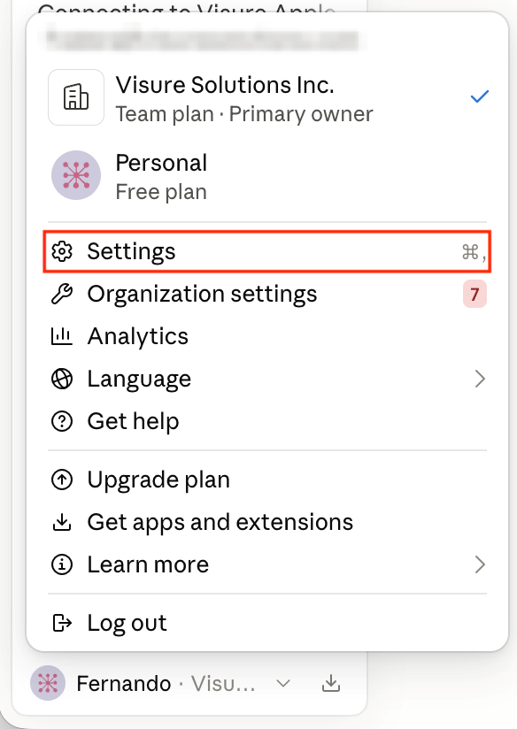
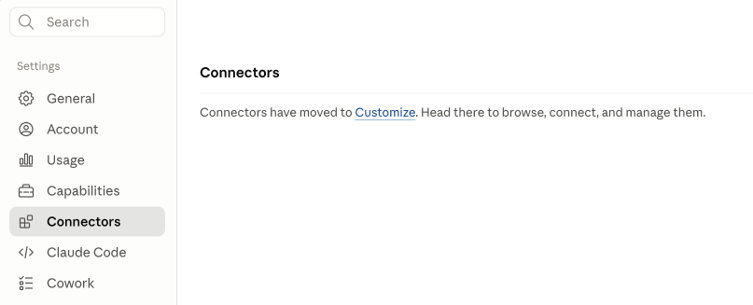
- Log in to claude.ai and open Connectors — via Customize > Connectors, or your name at the bottom-left → Settings > Connectors → the Customize link.
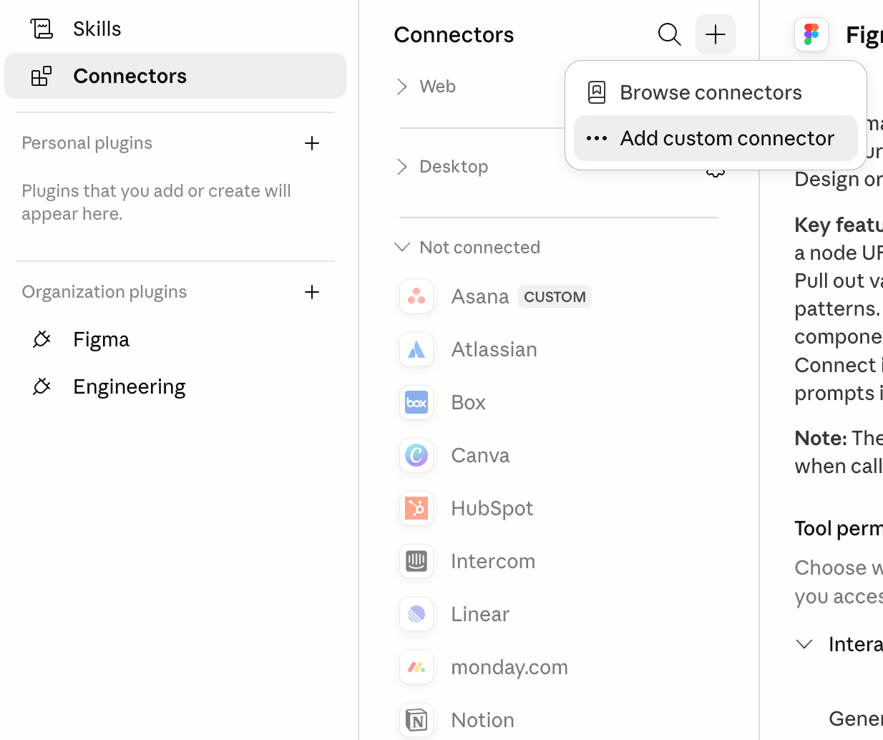
- Click Add Integration (or the + button) → Add custom connector.
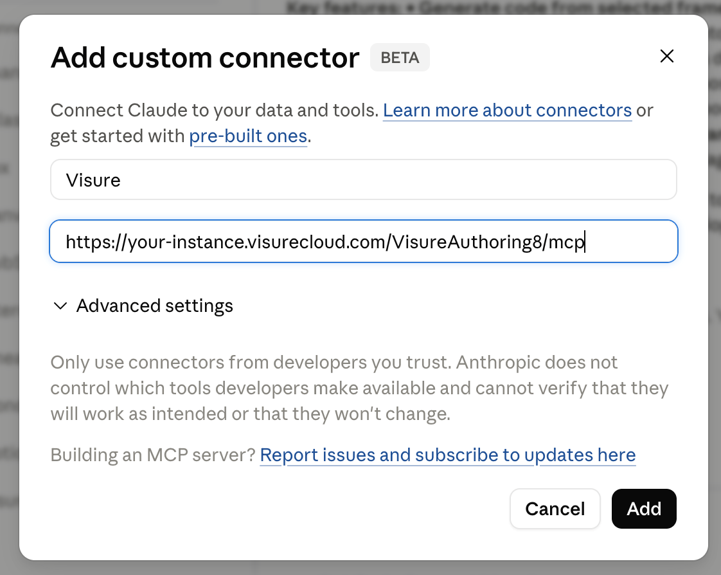
- In Add Custom Connector, enter a Connector name (e.g.
Visure) and your MCP Server URL, then click Add. - You'll be prompted to log in to Visure — click Connect and sign in with your credentials in the browser window. (This login is required each time you connect.)
- Visure now appears as an active connector. Mention Visure tasks in any conversation and Claude calls the tools automatically.