Create a project template
A project template captures a project's configuration so new projects can be created from it — reusing the same data model, attributes, workflows, and structure instead of rebuilding them. You create one from the Projects tab with Create Project Template button, which opens the Create Project Template wizard (two steps).
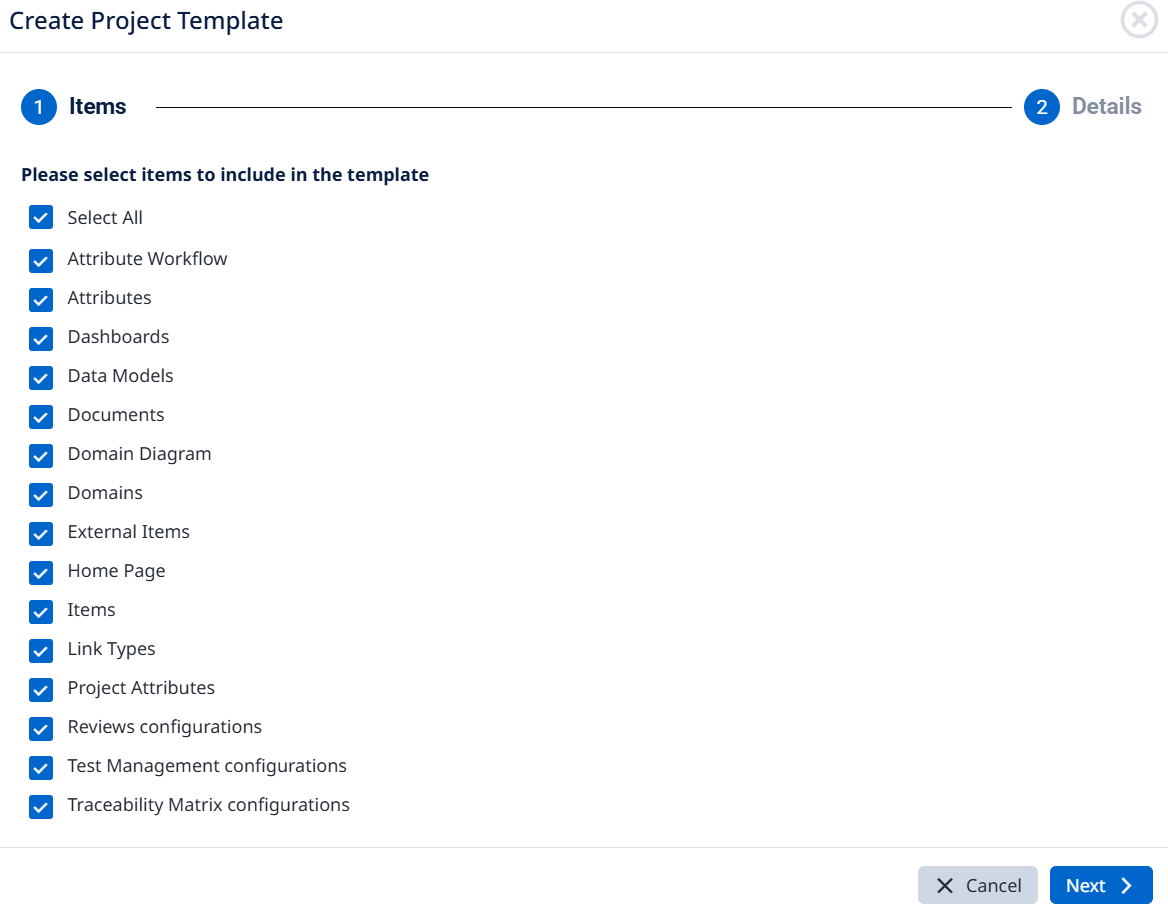
Step 1 — Items
Choose which parts of the project to include in the template. Select All grabs everything, or pick individually from:
- Attribute Workflow
- Attributes
- Dashboards
- Data Models
- Documents
- Domain Diagram
- Domains
- External Items
- Home Page
- Items
- Link Types
- Project Attributes
- Reviews configurations
- Test Management configurations
- Traceability Matrix configurations
Click Next.
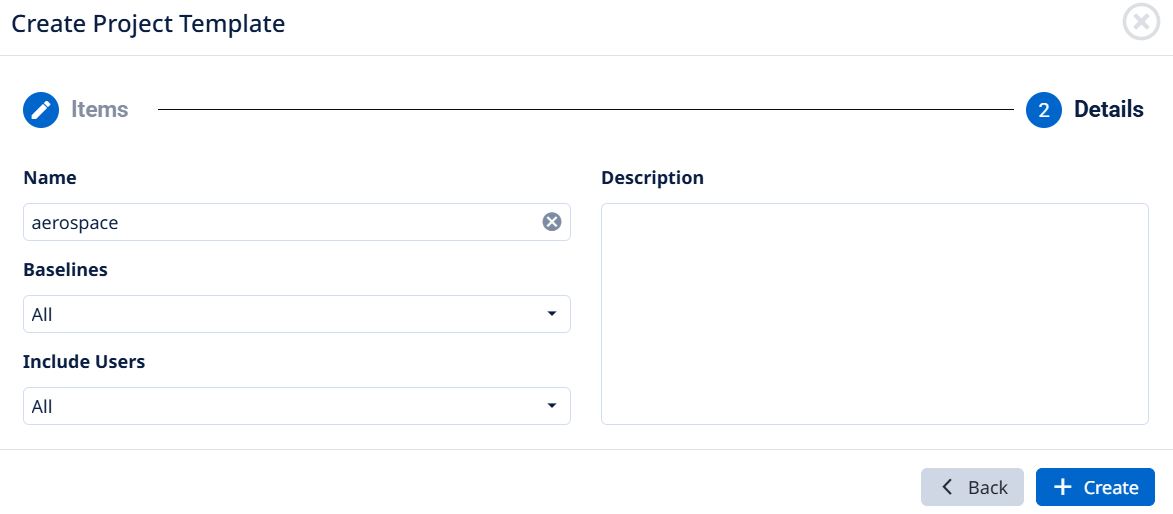
Give the template its metadata:
- Name — the template name (e.g.
aerospace). - Baselines — which baselines to include (e.g. All).
- Include Users — whether to carry the project's users into the template (e.g. All).
- Description — an optional free-text description.
Click + Create to build the template. It's then available as a base whenever a new project is created.
Tip: include only what a new project genuinely needs. A lean template (data model, attributes, workflows) is reusable across many projects; one loaded with a specific project's Items and Baselines is really a clone of that project, which is sometimes what you want but rarely what you want as a template.