Add a related item (using the data model)
If your project has a data model defined — a configuration that describes which item types can be linked to which, and by which link type — Visure can create a related item AND its traceability link in one step.
For example, the data model might say:
- A
Product Requirementcan have a childSystem Requirementlinked by asatisfied bylink. - A
Product Requirementcan have anAcceptance Testlinked by averified bylink.
When you select a Product Requirement and click Add Related, Visure offers System Requirement and Acceptance Test as options. Choosing one creates the new item in the right document, with the right link, in the right direction — no manual setup.
To add a related item:
- Select an item that has data-model-defined relationships.
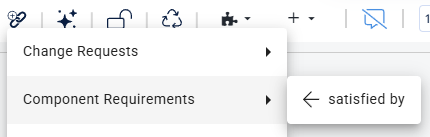
- Click the Add Related button in the top bar.
- In the menu that appears, choose the item type and direction you want.
Visure creates the new item in the appropriate document with the link already in place. You only need to fill in the name and description.
If Add Related is disabled, your project doesn't have a data model defined yet, or the selected item type has no defined outgoing relationships. Data models are covered in Section 2.5; setting them up is an administrative task (Module C).