Reviews and approvals
Review is where requirements get checked and signed off before problems become expensive. Visure supports this two ways: quick approve/reject on individual items, and formal review sessions that capture a snapshot of a document for a group to review, comment on, and approve — with a full history for compliance.
Approve or reject an item
The lightweight path, for signing off items in place.
- In the Document view, select an item — an approve/reject toolbar appears on the left.
- Click Approve or Reject and enter a reason for the decision.
You can reverse a decision at any time (approval → rejection or vice versa). Results show on the left of the document, and the full record — status, who approved or rejected, comments, dates, and the item version involved — lives in the Approvals tab of the Properties Panel.
Create a review session
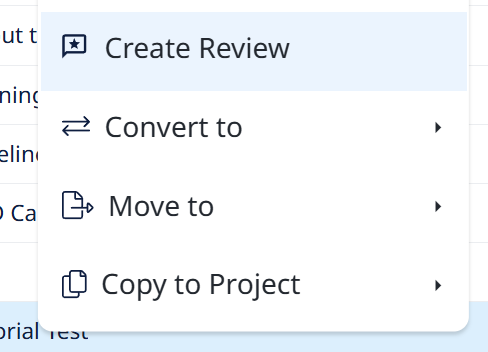
A review session is a copy of a document (or part of it), linked back to the originals, that a team reviews without touching the live requirements. Create one from the Documents section (right-click a document → Create Review) or from the Reviews section (Create review session). A wizard walks you through four steps.
1. Review details
- Baseline — defaults to the current baseline; pick another to review that snapshot instead.
- Document — the document being reviewed (pre-selected if you started from one).
- Name — auto-filled as
REV_+ document name + date/time; editable. - Access Partition — who can see and edit the review.
- Create in custom folder — leave off to file the review automatically under a mirrored
Reviewspath (all reviews of a document stay together), or turn it on to choose your own location.
2. Select items — choose which items to include, manually or with a filter. You can add more later.
3. Select attributes — pick which attributes to copy from the originals into the review items. Turn off Show only document attributes to see all available attributes.
Important — attributes scoped to specific documents: If a custom attribute's scope is set to "Apply attribute to all items inside the selected documents" (rather than the whole project), it only exists where that scope reaches. Review items live in the Reviews folder, which is outside your original documents — so the attribute won't be available to copy into the review, and it won't appear in this list. To carry it into reviews, edit the attribute's scope to also include the Reviews folder. Without that, attempting to include those attributes in a review does nothing — they simply won't show up.
4. Reviewers, approvers, and due date
- Review Due Date — after this date, no more approvals, rejections, or comments.
- Approvers — can approve, reject, or comment. No check-out needed, so read-only users can be approvers.
- Reviewers — can comment and reply. Also no check-out needed.
- Include introduction item — adds a summary table at the top (review name, dates, reviewers, approvers, project, document under review, baseline, and a free "Other" field).
Click through and finish to create the review.
Add items to an existing review
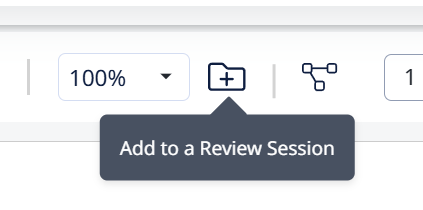
select the items you want, then click Add to Review Session and choose the existing review to add them to.
Synchronize changes back to the originals
Review items track whether they still match the originals via an icon on the right:
- Green — identical to the original item.
- Orange — the review copy's name, description, or attributes were changed and haven't been pushed back.
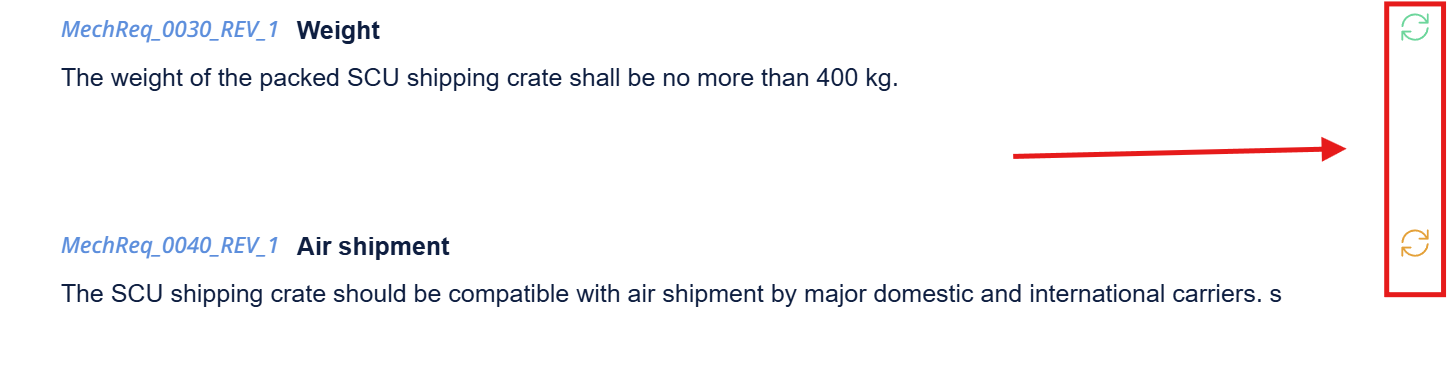
Click the icon to synchronize that item's changes back to the original requirement (you'll get a confirmation, and the icon turns green after a refresh). To push everything at once, use the Synchronization icon in the toolbar and choose how the sync should run.
Convert between documents and reviews
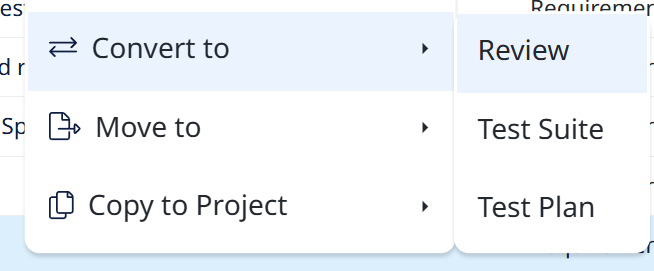
Right-click a document and choose Convert To > Review to move it into the Reviews section, or right-click a review to convert it back to a document. Useful if you have legacy reviews stored as plain documents.