
Export to Word
You can export a document to a formatted Word file from either the Document view or the List view. (Excel export is only available from the List view.) The Word document wizard gives you fine control over which item types, attributes, and traceability appear and how they're styled — and you can save the whole setup as a reusable configuration.
Start the export
In an open document, click the export button and choose Export to Word. The wizard opens with a Configuration panel on the left and a Heading Formatting panel on the right.
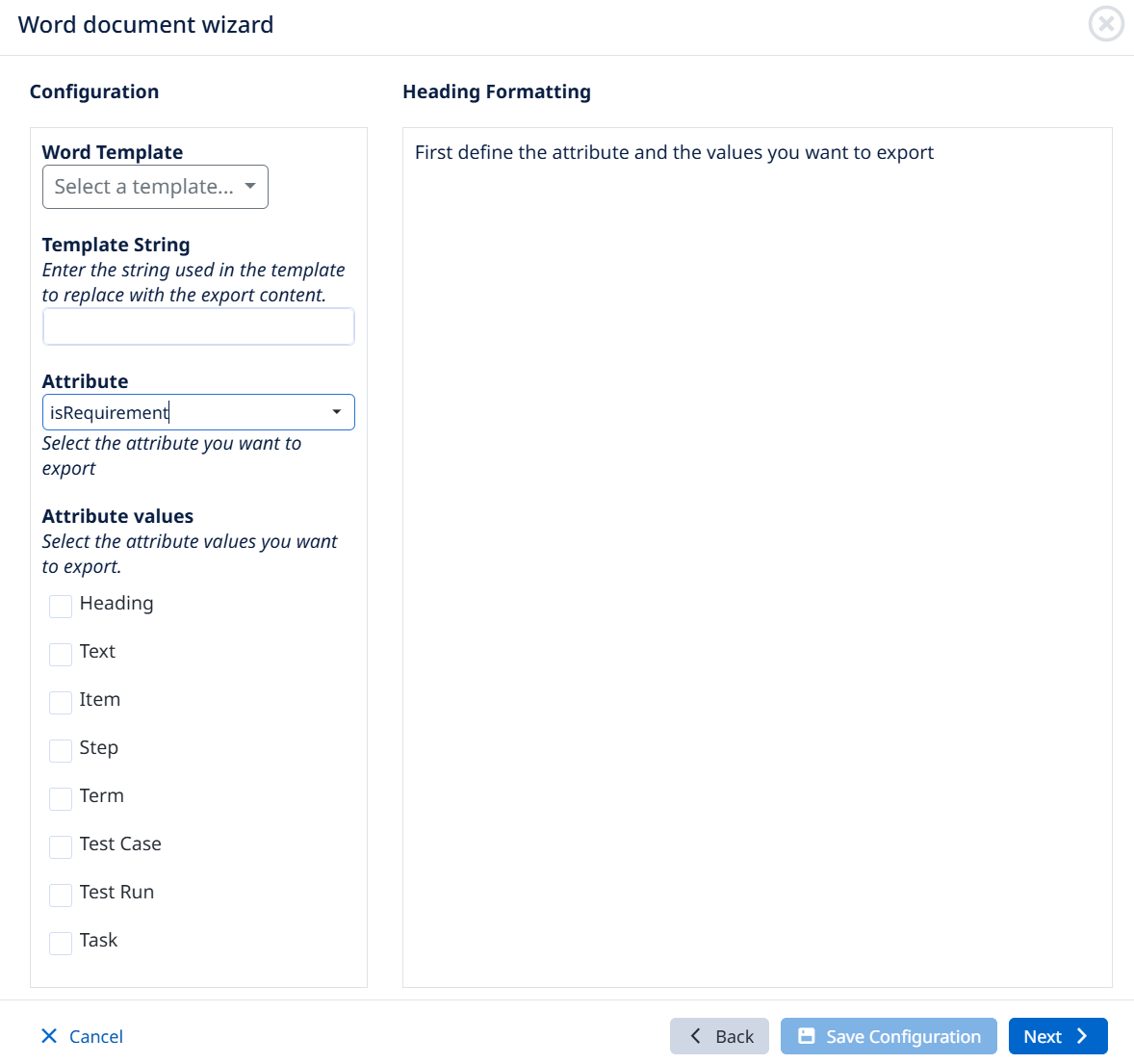
1. Configuration (left panel)
Word Template — select a Word template to export into. It must be in Word template format, and you can upload a new one here. (You can also start from a blank document.)
Template String — if your template contains a placeholder string, enter it here; Visure replaces that string with the exported content, so it behaves like a variable dropped into the template.
Attribute — choose the attribute that identifies your item types. isRequirement is highly recommended — it ships with every template except the blank one.
Attribute values — check which values of that attribute to include in the export, e.g. Heading, Text, Item (also Step, Term, Test Case, Test Run, Task, depending on your data). Each value you select is configured separately on the right.
2. Heading Formatting (right panel) — per selected value
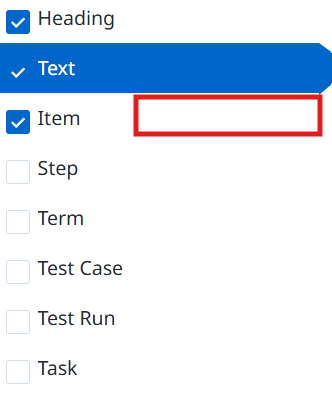
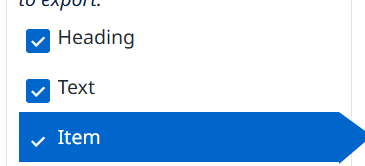
Select a value on the left, then choose how it exports by clicking ont the empty section as shown.
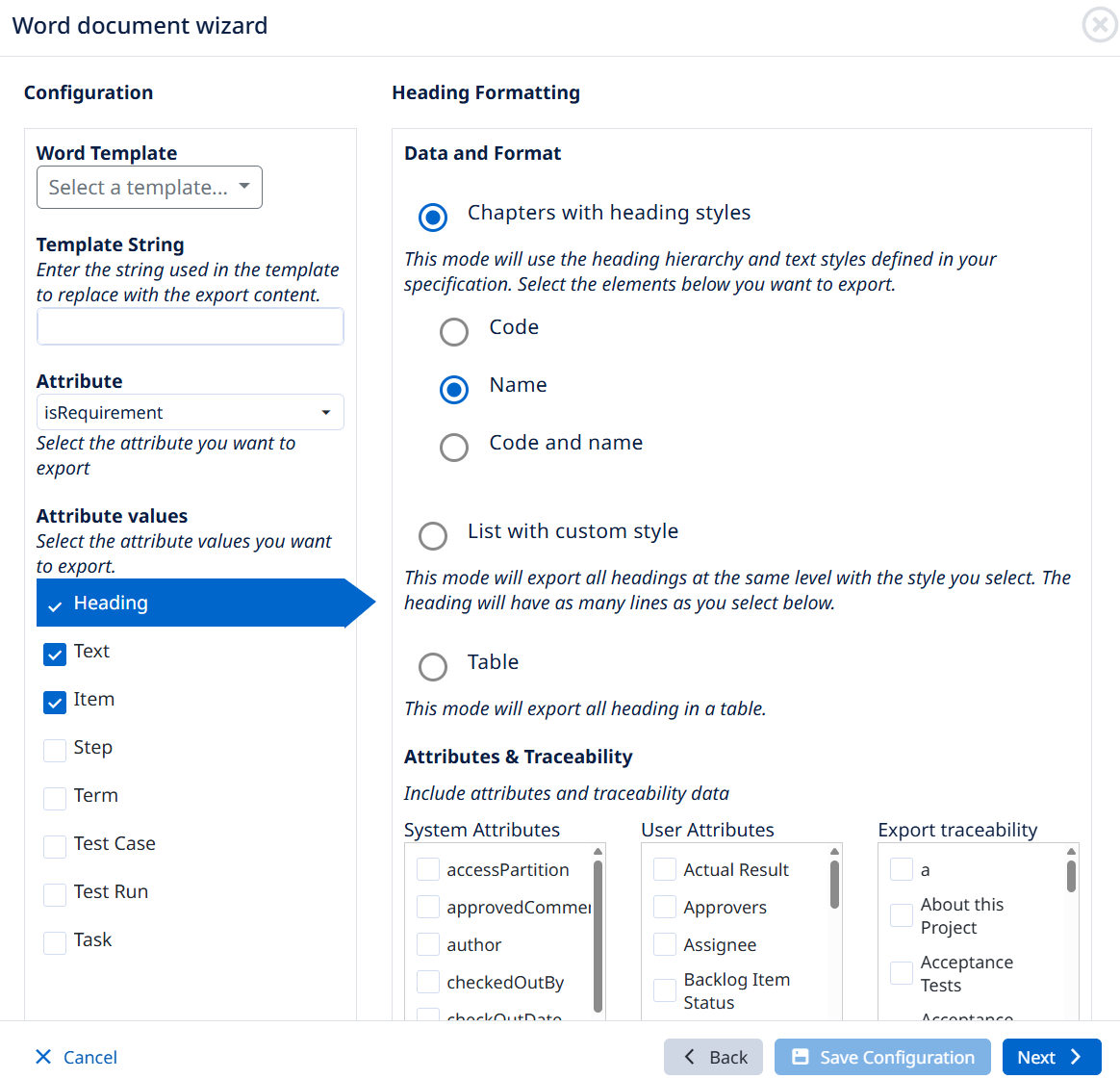
- Chapters with heading styles — uses the heading hierarchy and text styles from your specification. Choose to export the Code, the Name, or Code and name. Best for headings/sections.
- List with custom style — exports items at the same level in a style you pick. Configure what goes in the 1st, 2nd, and 3rd paragraph (Code / Name / Description) and the paragraph style for each. Best for items and text.
- Table — exports items into a table; check Code, Name, and/or Description individually as columns.
Below the mode, under Attributes & Traceability, you can also include:
- System Attributes — author, access partition, creation date, etc.
- User Attributes — your custom attributes.
- Export traceability — pick which document to trace to and whether to show the linked items' Code, Name, or Description.
These settings apply per value — so headings, items, and text can each be exported differently, and you can mix modes across item types.
3. Map document properties and export
Click Next for the final step: map Visure Attributes to MS Word Template Properties. Use this to fill your template's Word document properties (cover page, headers, footers) — map the attributes that are scoped to apply to documents (DOC ID, Revision, DOC Status, etc.) to the matching Word properties.
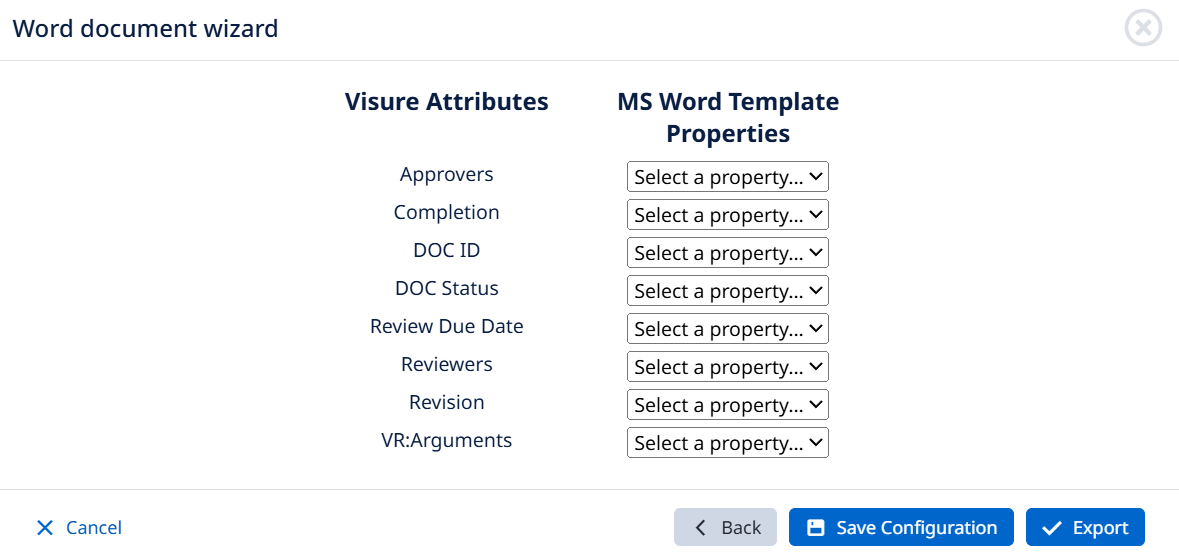
Finally, either click Save Configuration to store this whole setup for one-click reuse later, or click Export to generate the Word document.