Connect the MCP to GitHub Copilot
Requires Node.js (nodejs.org). (Complete the MCP prerequisites first.) There are two ways to configure it, plus certificate troubleshooting.
Through the Desktop App
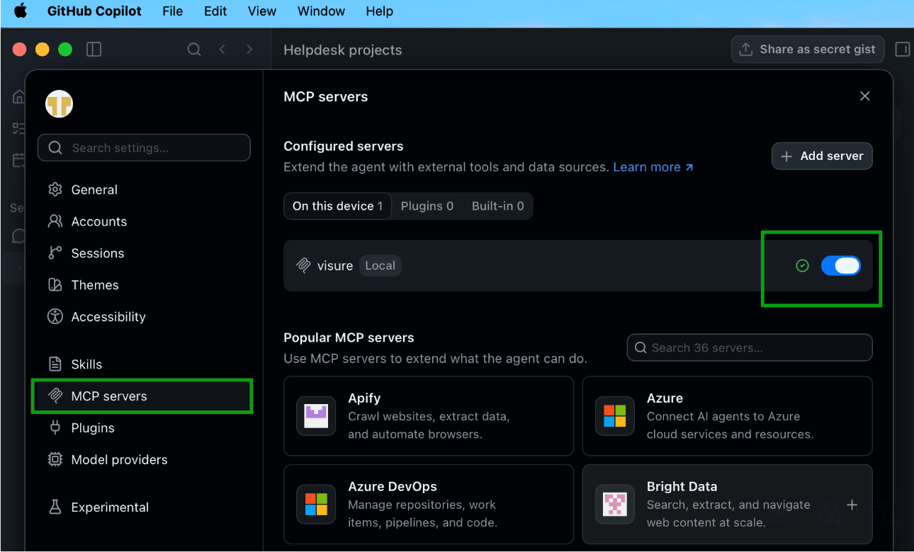
- In Copilot, go to Settings > MCP Server.
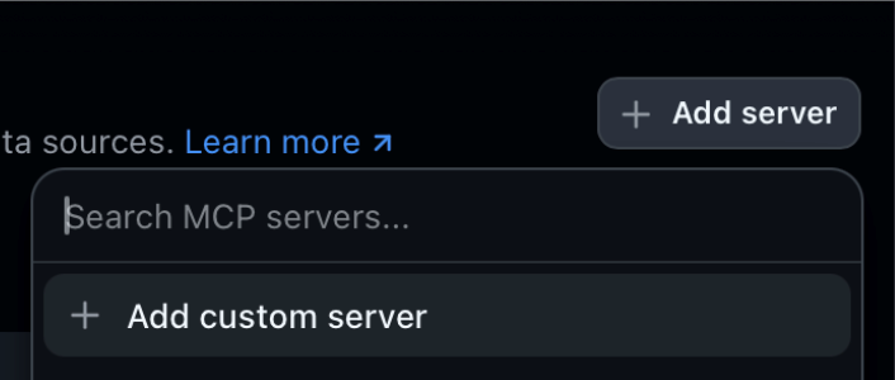
- Click + Add server → + Add custom server.
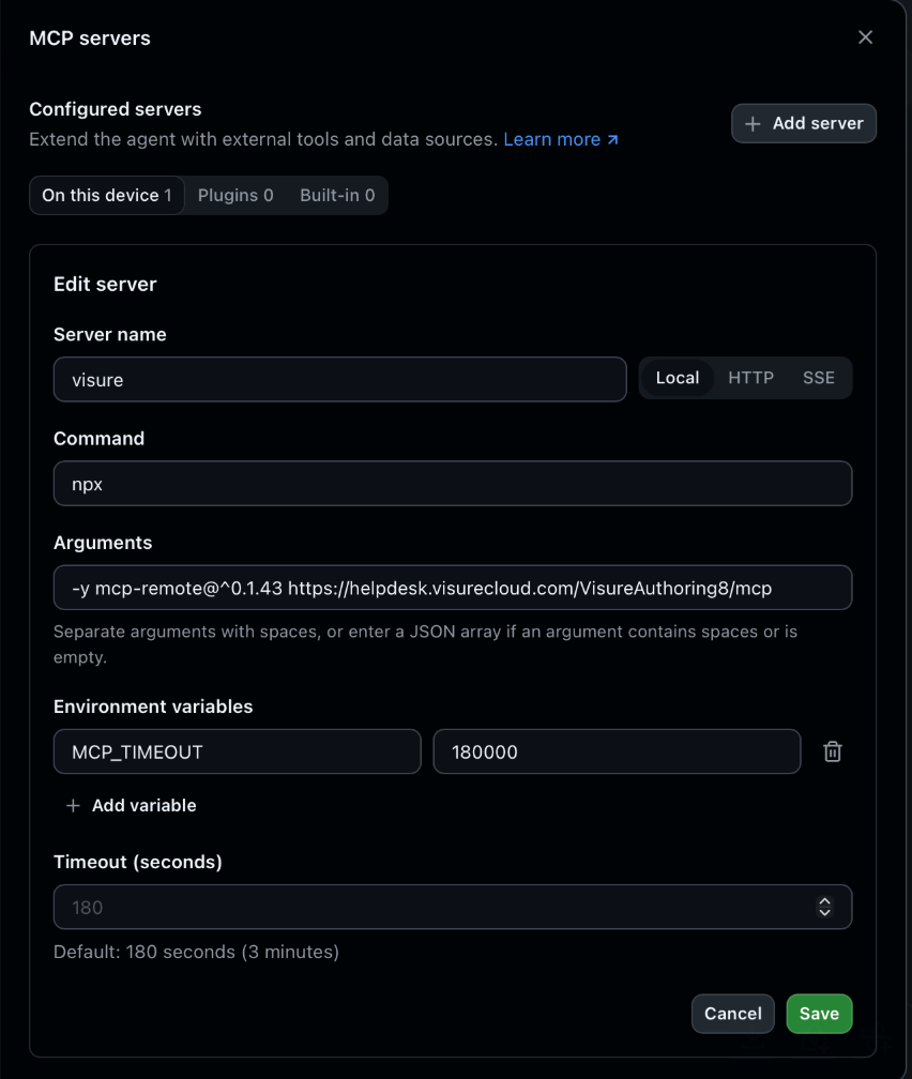
- Fill in the form:
- Server name:
visure - Command:
npx - Arguments:
-y mcp-remotehttps://WWW.YOURDOMAIN.COM/VisureAuthoring8/mcp(use your installation's URL) - Environment variable:
MCP_TIMEOUT: 180000
- Server name:
- Save, then return to Settings > MCP Server and enable the MCP.
- You'll be redirected to the Visure Authoring login page.
Through the configuration file
Edit mcp-config.json — Mac: /Users/<YourUsername>/.copilot/, Windows: C:\Users\<YourUsername>\.copilot\ — and add:
json
{
  "mcpServers": {
    "visure": {
      "command": "npx",
      "args": [
        "-y",
        "mcp-remote@^0.1.43",
        "https://your-host/VisureAuthoring8/mcp"
      ],
      "env": {
        "MCP_TIMEOUT": "180000"
      }
    }
  }
}
Launch Copilot, go to Settings > MCP Server, and enable the MCP. You'll be redirected to the Visure login page.
Troubleshooting a self-signed certificate
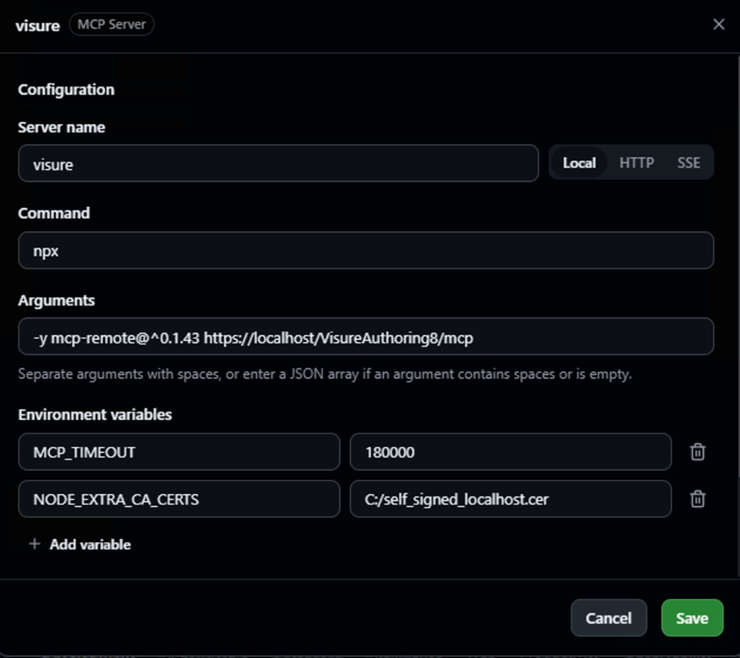
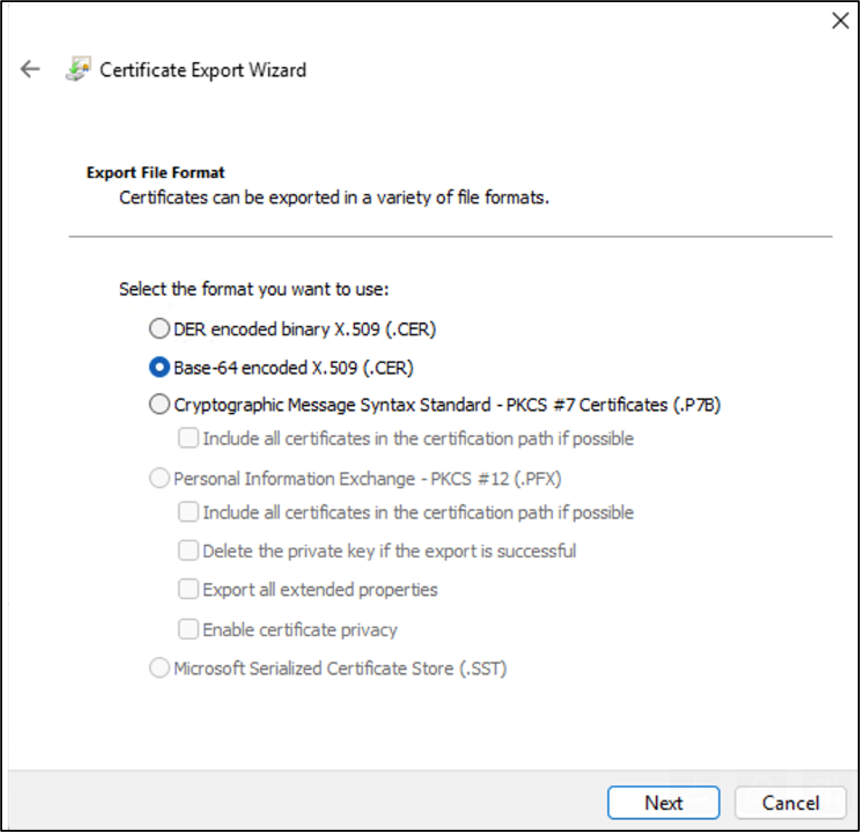
If you get HTTP error 405 or a connection-refused timeout, an IIS self-signed certificate is likely the cause. Export it as a Base64 .cer from IIS Manager and reference it with NODE_EXTRA_CA_CERTS:
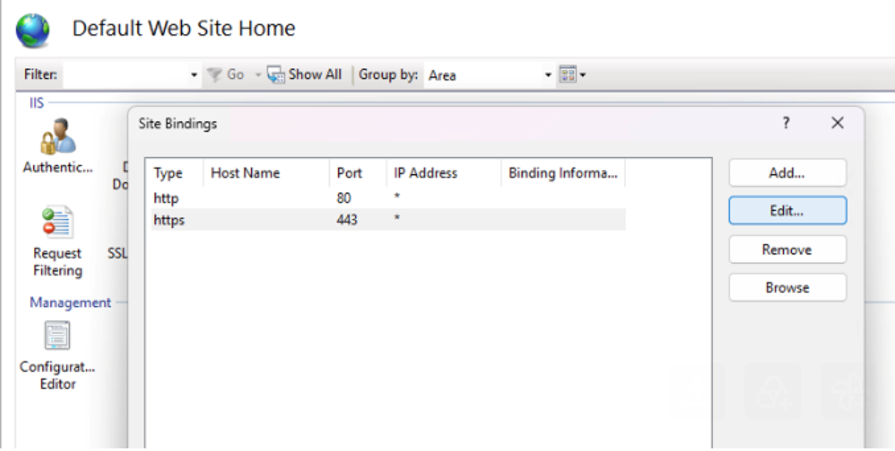
- In IIS Manager, select Default Web Site → Bindings.
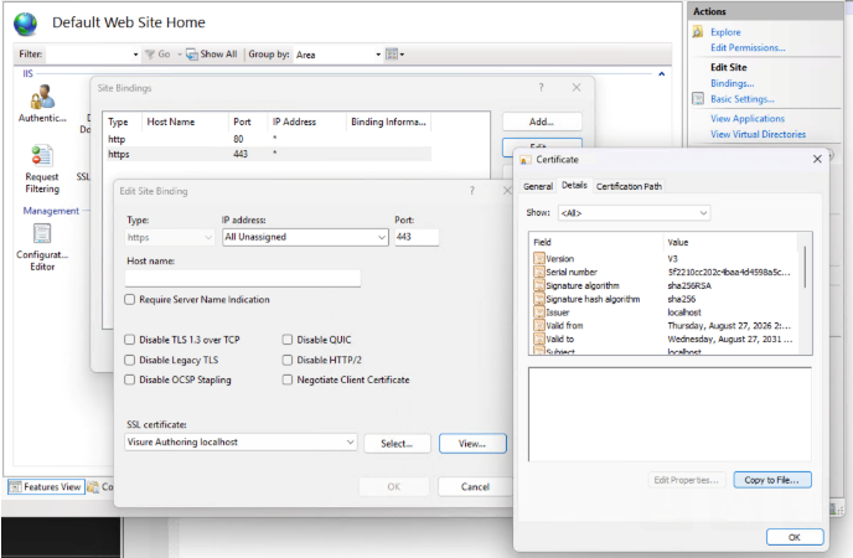
- Edit the https binding, select the certificate from the SSL dropdown, click View.
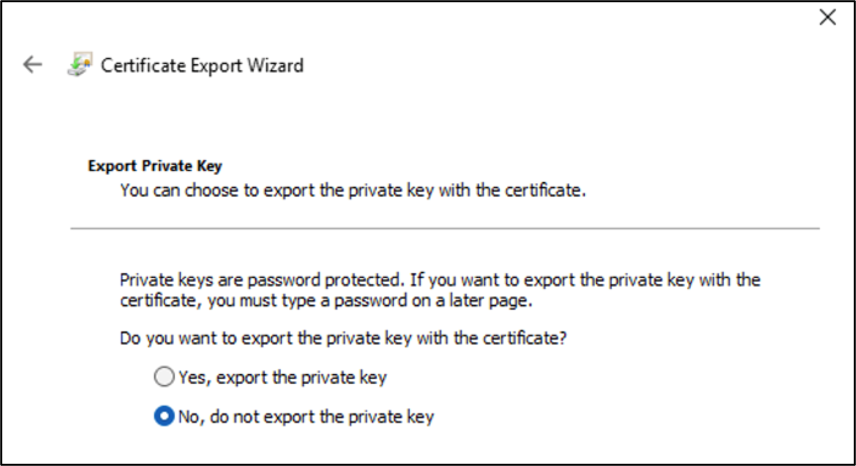
- On the Details tab, export the certificate without the private key.
- Copy the
.certo a known path (e.g.C:\self_signed_localhost.cer). - Add it to the config:
json
"env": {
  "MCP_TIMEOUT": "180000",
  "NODE_EXTRA_CA_CERTS": "C:/self_signed_localhost.cer"
}
(You can also add NODE_EXTRA_CA_CERTS directly in Copilot's MCP settings.) You should now connect with your self-signed certificate.